How to Copy Sheet in Excel
Today we’re going to see the quickest and most convenient way how to copy a sheet in Excel.
Are you ready?
How to Copy a Single Sheet
To quickly copy a sheet in Excel, we first click down here on the name of the sheet we want to copy.
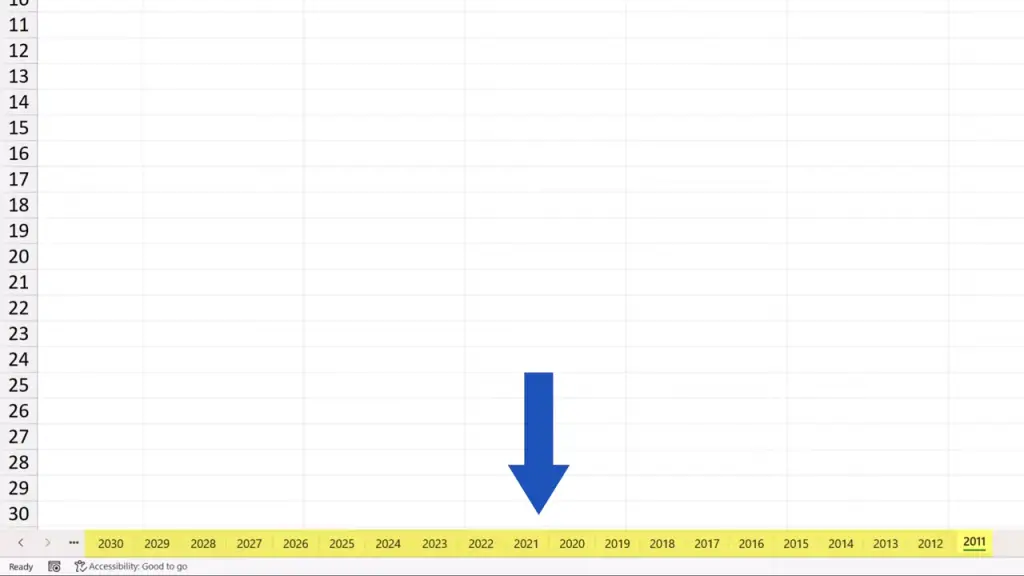
Let’s say we want to copy the sheet ‘2025’, so we click on it.
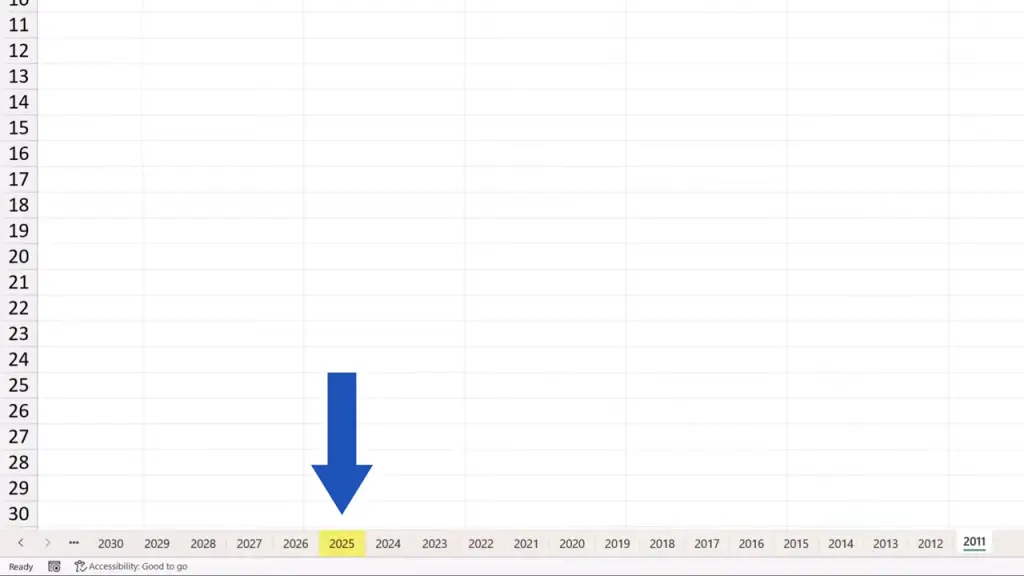
Then, we press and hold the Control key.
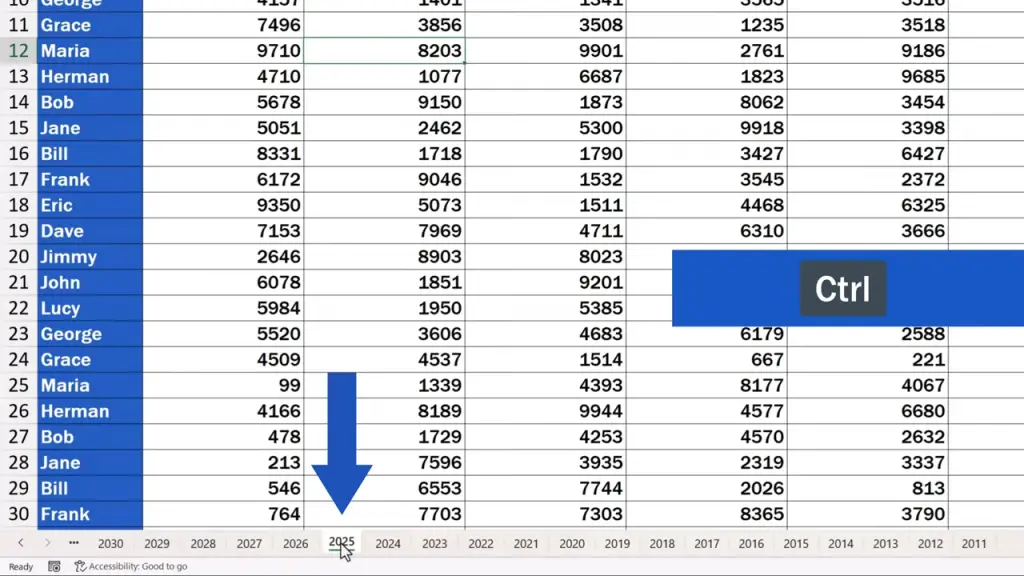
Now we use the left mouse button to drag and drop the sheet to the place where we want the copy to be created.
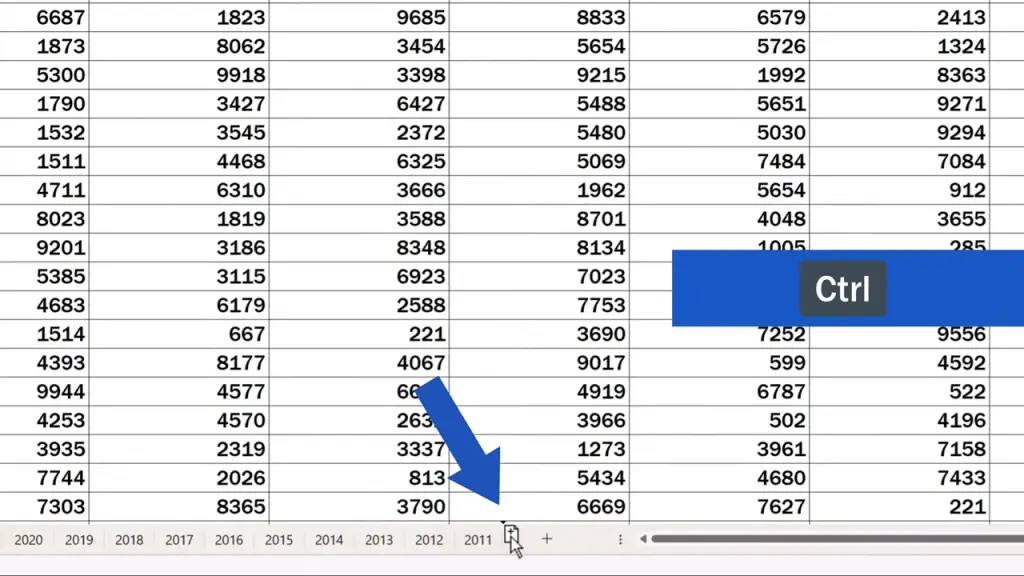
Notice this little plus symbol next to the cursor – that means the sheet will be copied, not just moved there.
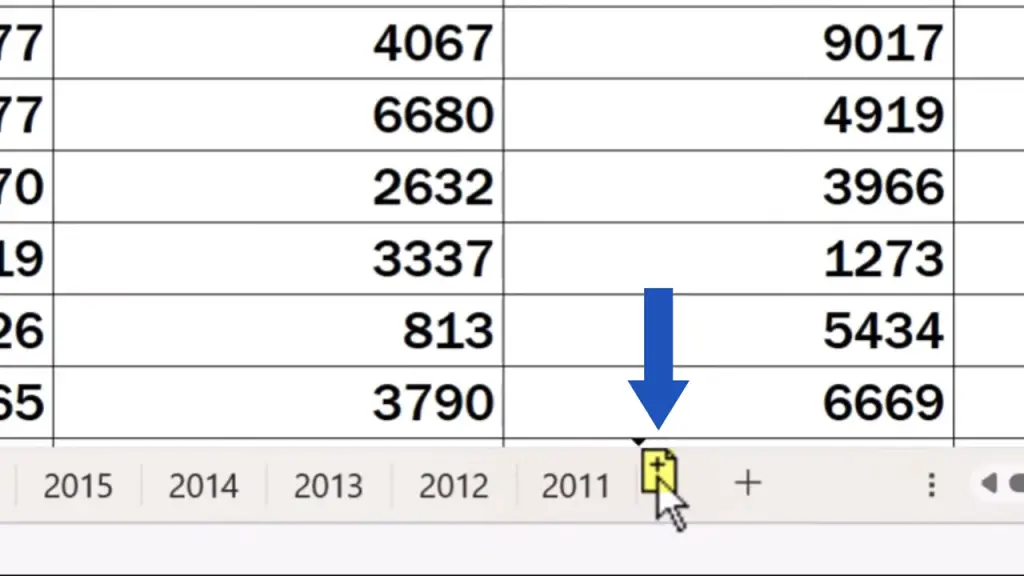
So, once we’re at the right spot, we release the left mouse button and here comes the copy of the original sheet!
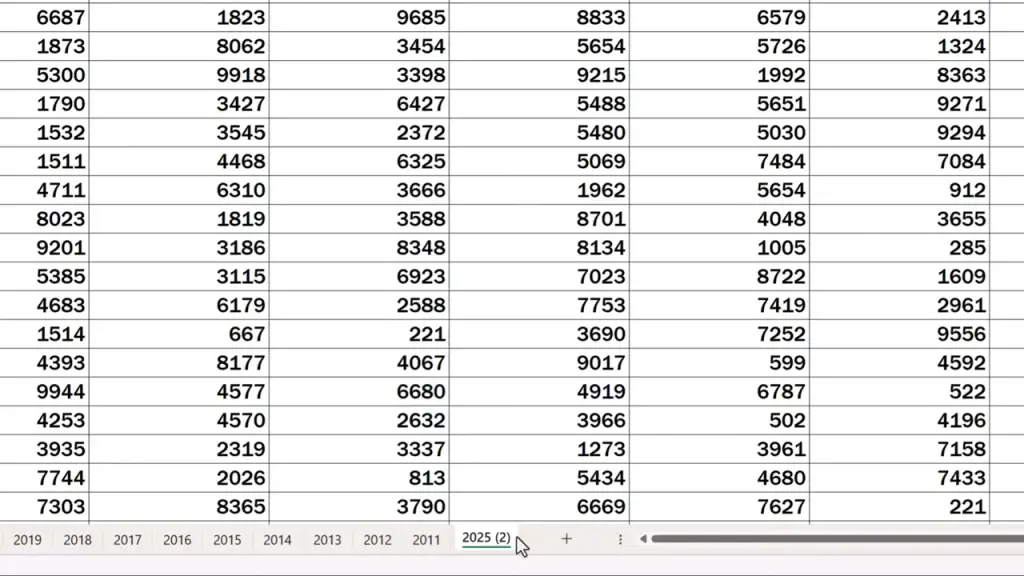
But we’re not done here.
How to copy multiple sheets
We can use the same way to quickly and conveniently copy multiple sheets at once. Again, we click on the first sheet we want to copy, here it’ll be let’s say the sheet ‘2011’.
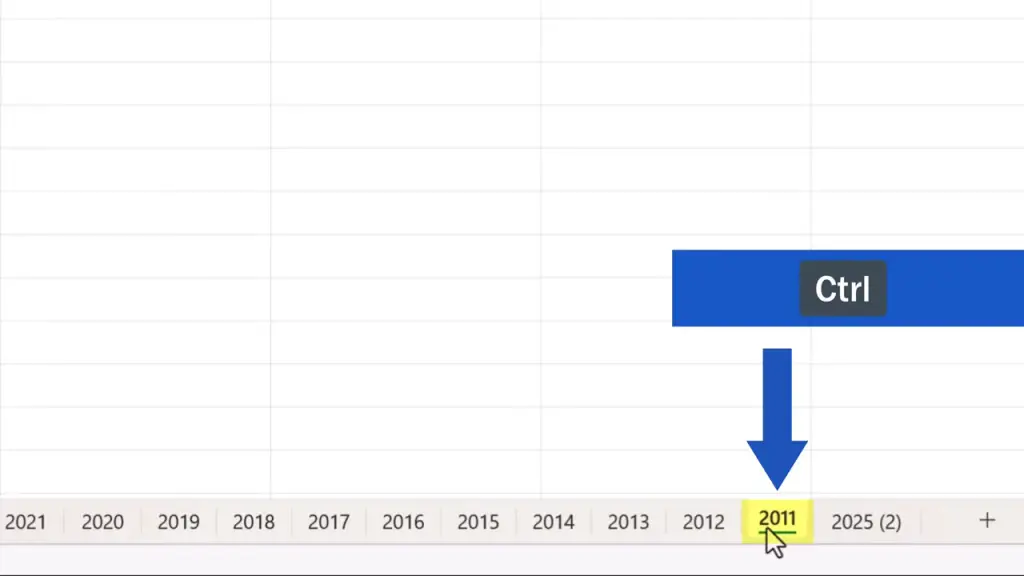
Then we press and hold the Control key again, and we select the rest of the sheets that need to be copied. For example, we’ll select ‘2013’ and ‘2014’.
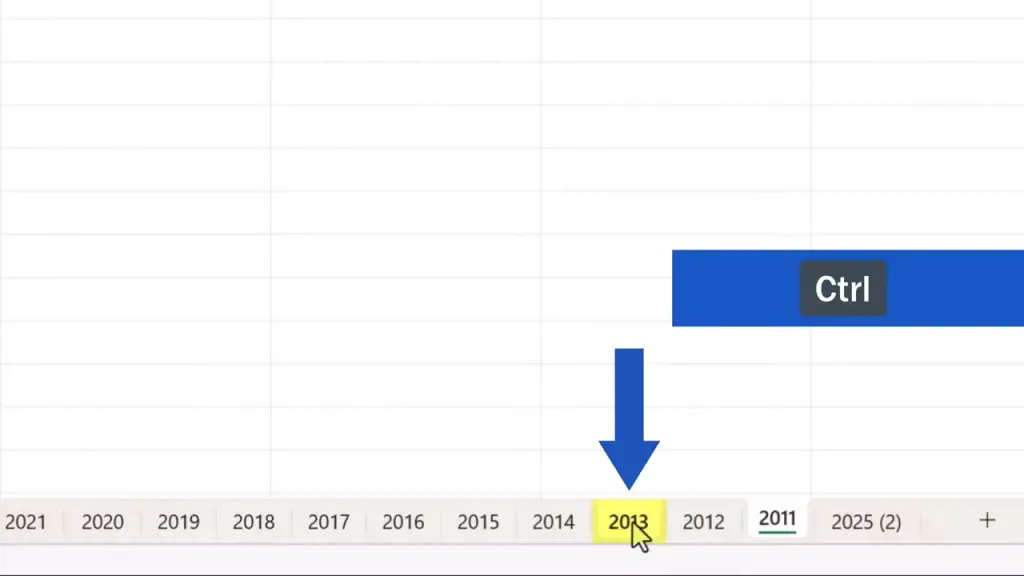
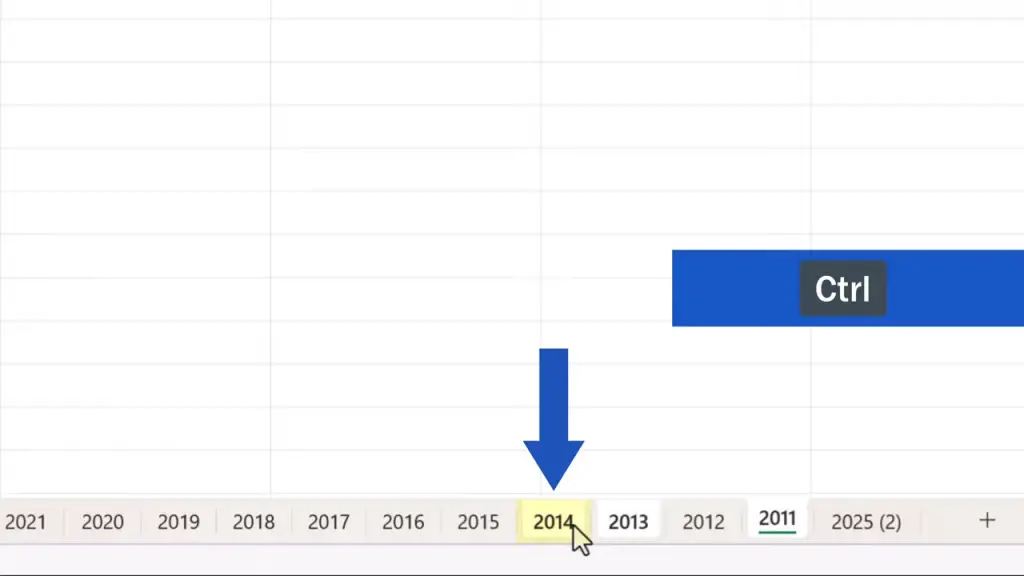
We’re still holding the Control key and we can now move the cursor back to the first selected sheet – you can notice that the sheet name got underlined.
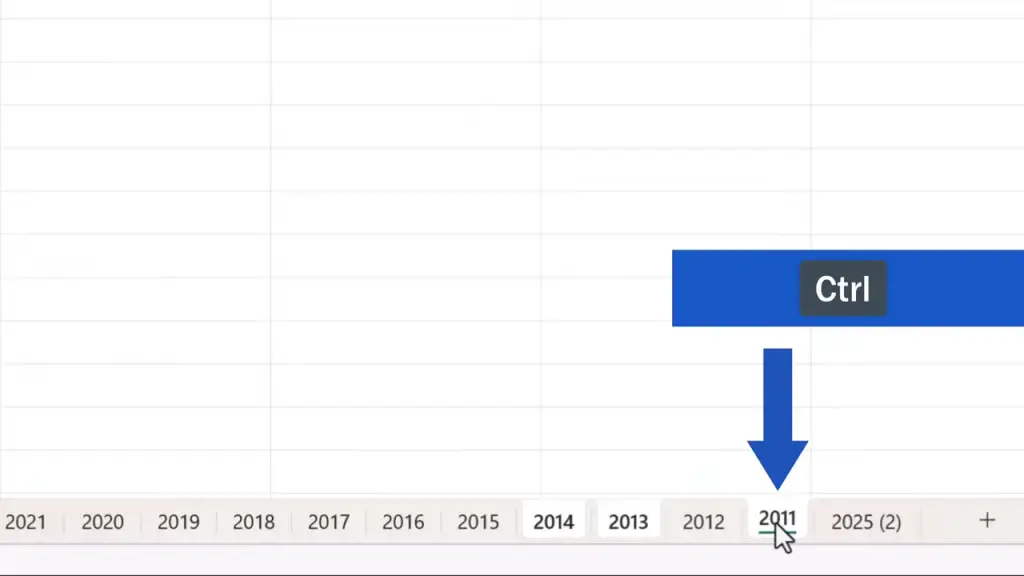
We use the left mouse button to click on it, and we see the little plus sign appear next to the cursor again.
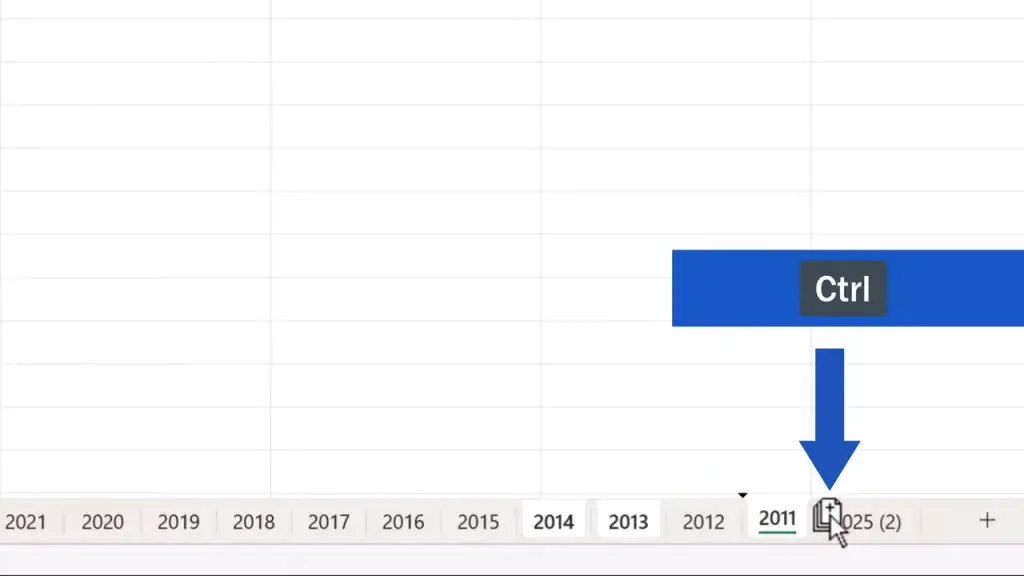
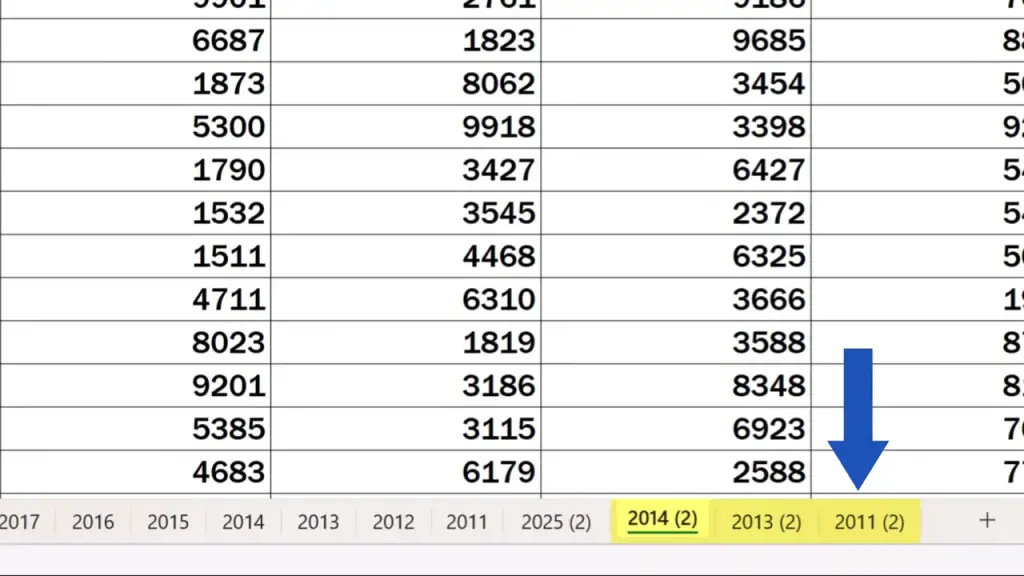
Now we just find the right place for the sheets, release the mouse button and that’s it! Here come the copies of all three sheets!
To learn more amazing tricks and hacks, like Excel shortcuts, check out our series of Excel Shortcuts video tutorials! The links to the videos are in the description below.
Don’t miss out a great opportunity to learn:
If you found this tutorial helpful, give us a like and watch other tutorials by EasyClick Academy. Learn how to use Excel in a quick and easy way!
Is this your first time on EasyClick? We’ll be more than happy to welcome you in our online community. Hit that Subscribe button and join the EasyClickers!
Thanks for watching and I’ll see you in the next tutorial!

 How to Subtract a Percentage in Excel
Welcome! Today we’re going to talk about the simplest way how to…