How to Filter in a Pivot Table (Quick and Easy)
Today we’ll be talking about how to filter in a pivot table in a quick and easy way.
Get ready to start!
How to Insert a Filter in a Pivot Table
To filter data in a pivot table, first click anywhere within the pivot table area.
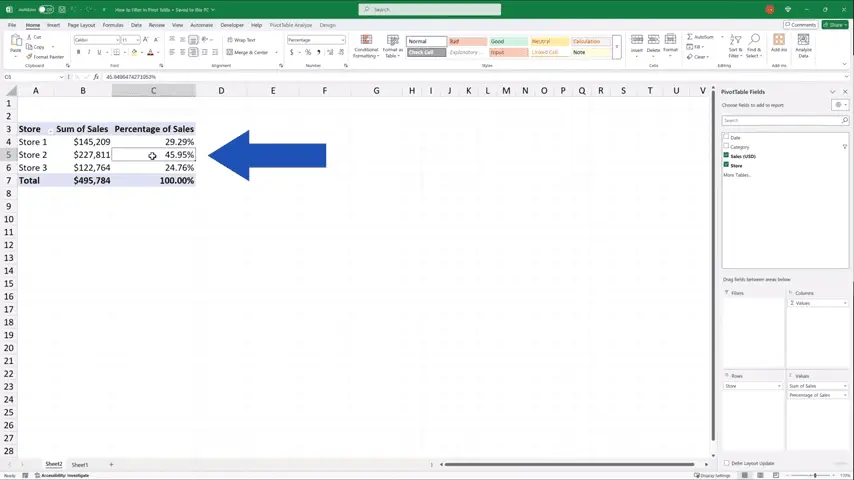
The section with ‘PivotTable Fields’ appears on the right, where we can find the area titled ‘Filters’.
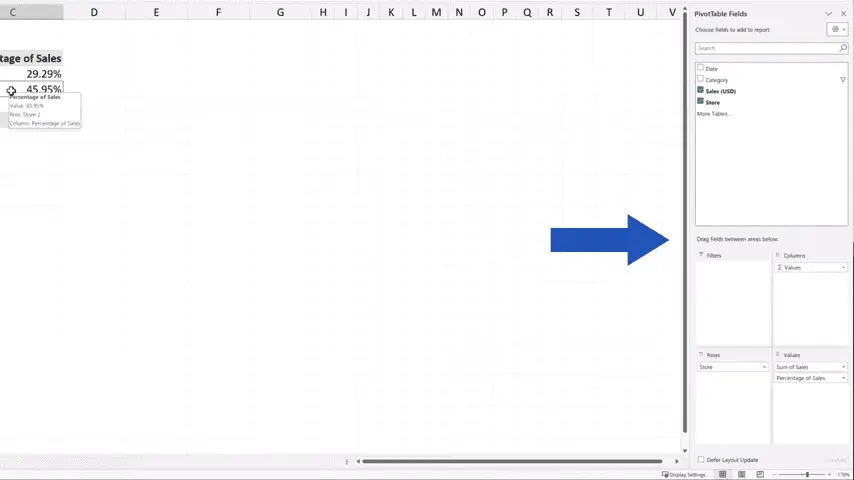
So, let’s have a closer look at this ‘Filters’ part, because it surely provides some very interesting options when it comes to how we can filter the data in the table.
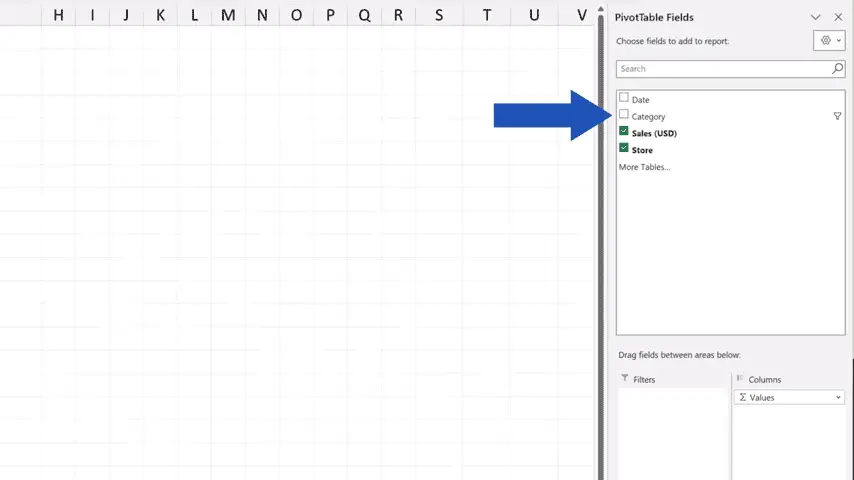
Up here we can see the headers of the columns included in the source data.
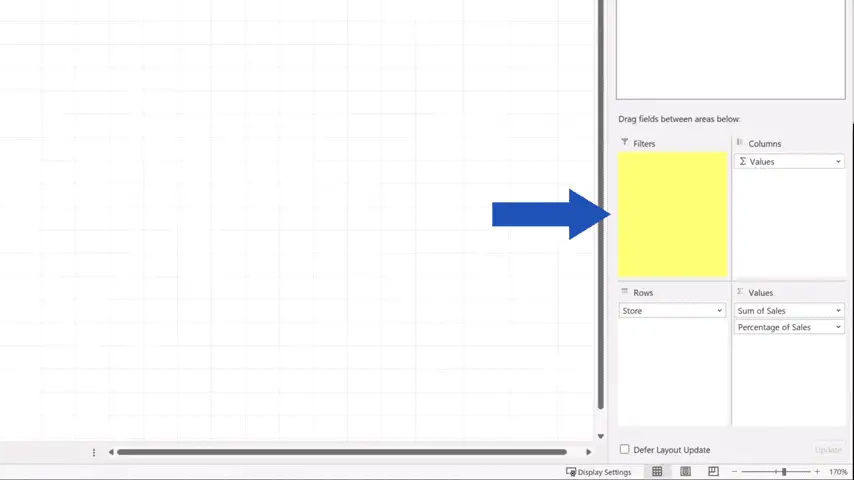
We can now sort and filter the sales data in these three stores based on, let’s say, ‘Category’.
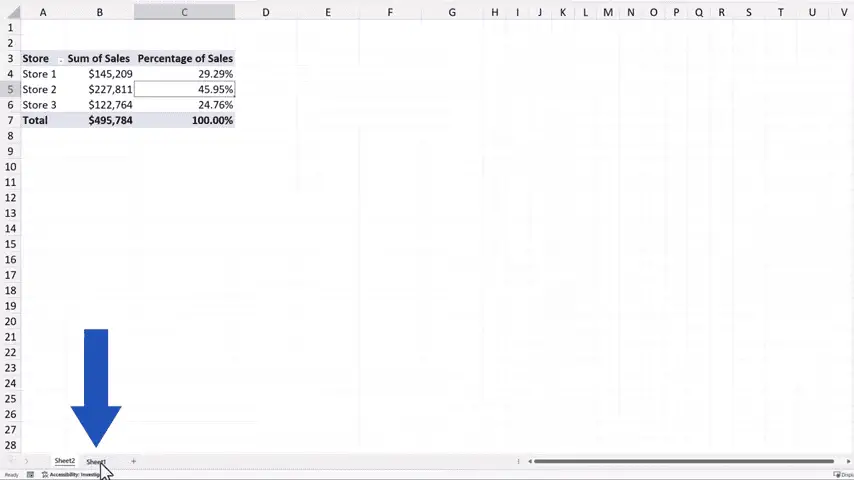
If we click on Sheet1, we can see the source data and all the available categories.
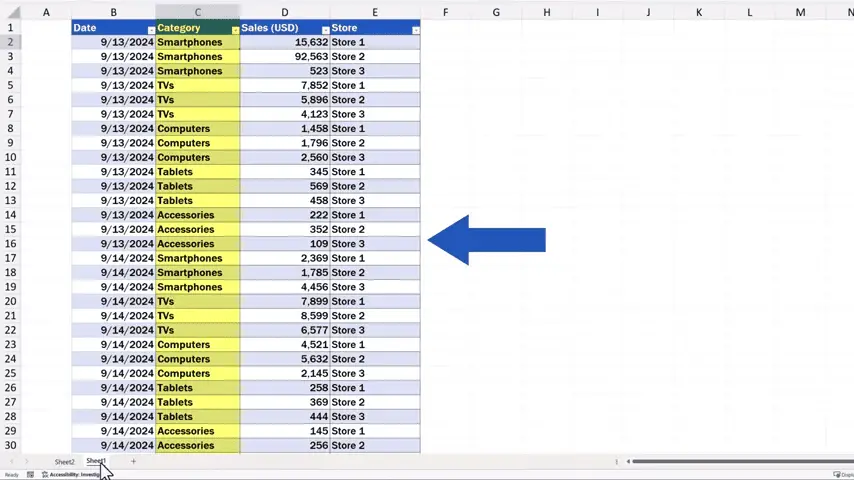
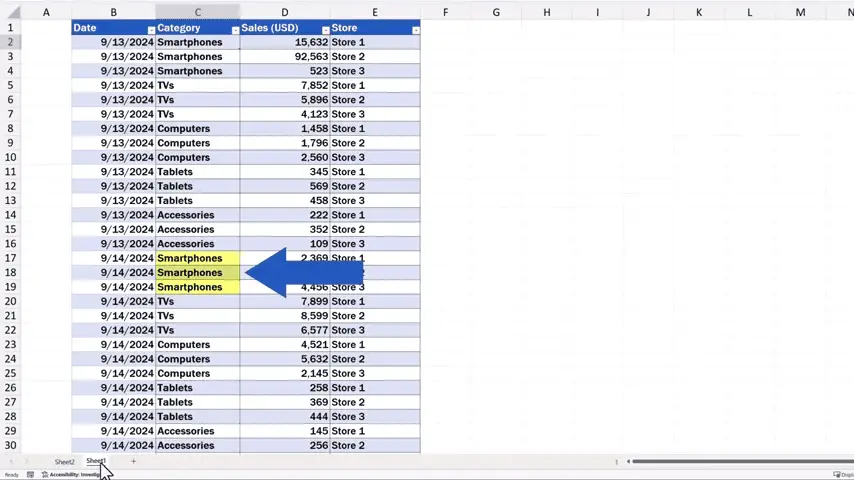
For example, there are ‘Smartphones’, ‘TVs’, ‘Computers’ and some others.
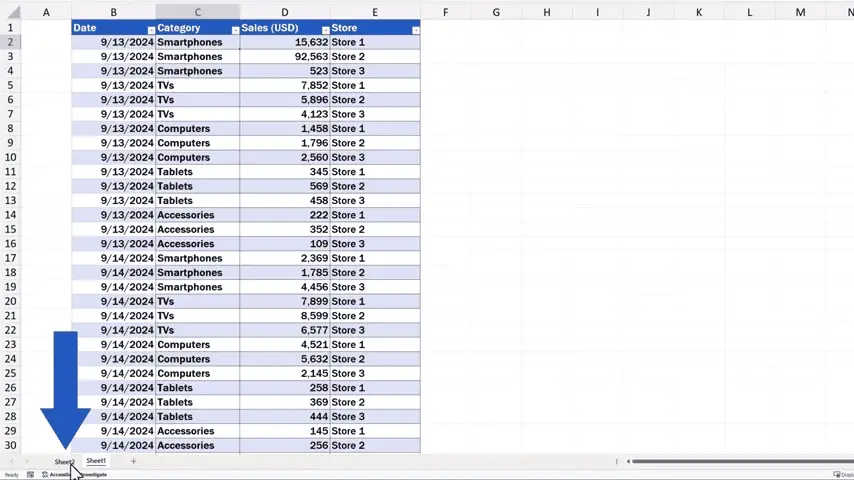
Let’s get back to Sheet2, where we see the pivot table and try to filter the data by ‘Category’.
How to Filter Data in a Pivot Table
We click on ‘Category’ in the list above and drag and drop it to ‘Filters’.
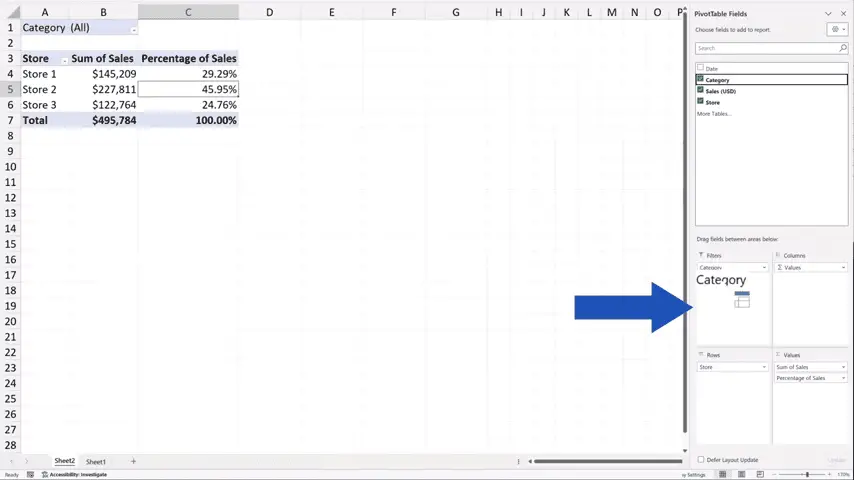
The option to filter the data by ‘Category’ has been inserted right above the pivot table.
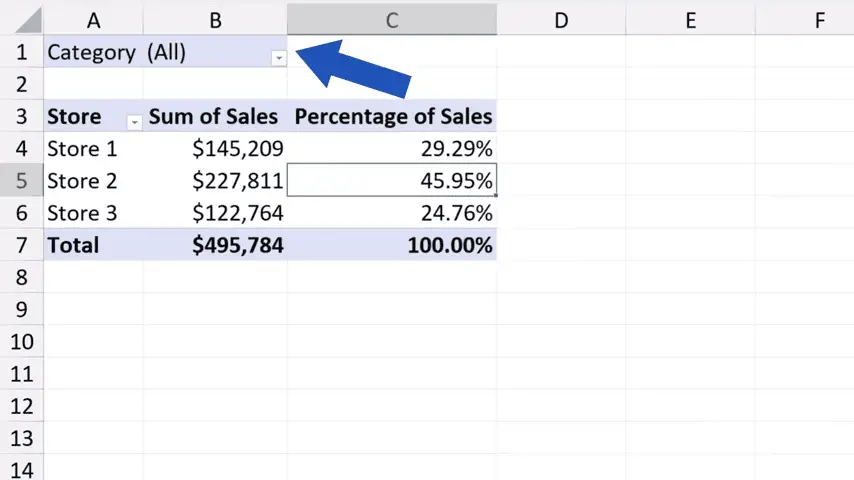
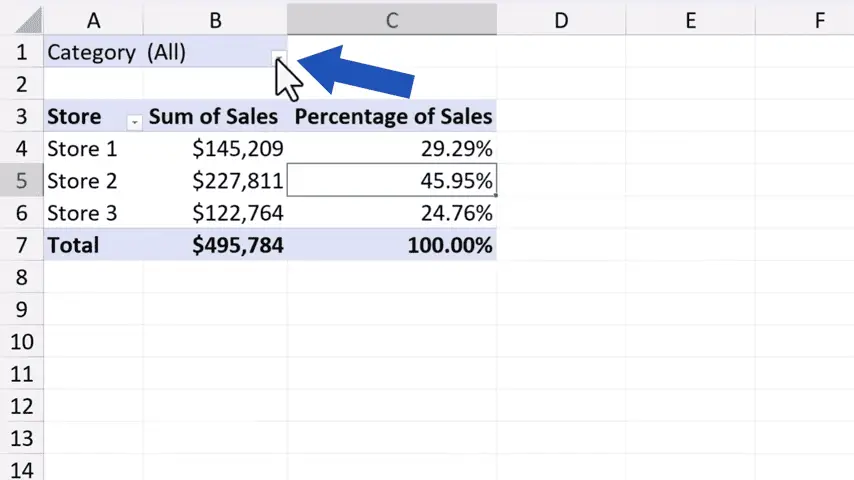
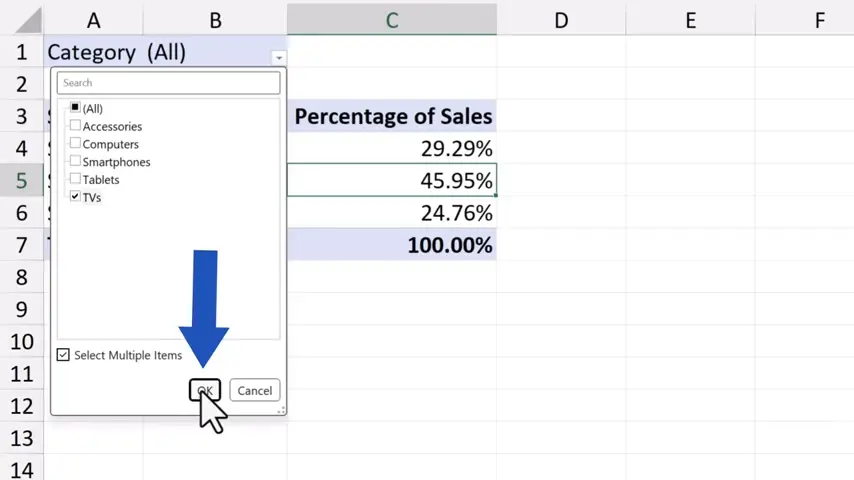
So, if we click on the drop-down button here.
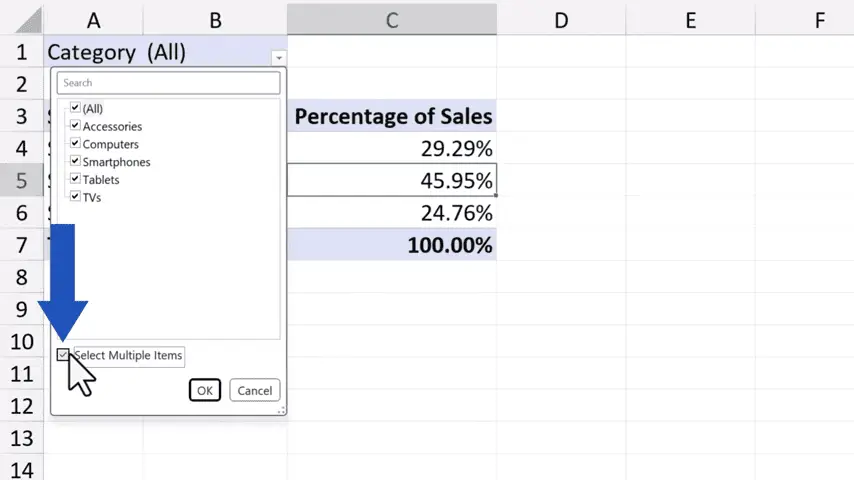
Tick the option ‘Select Multiple Items’ down here, we can quickly and conveniently filter the sales by any category from the list.
Let’s select ‘TVs’ now.
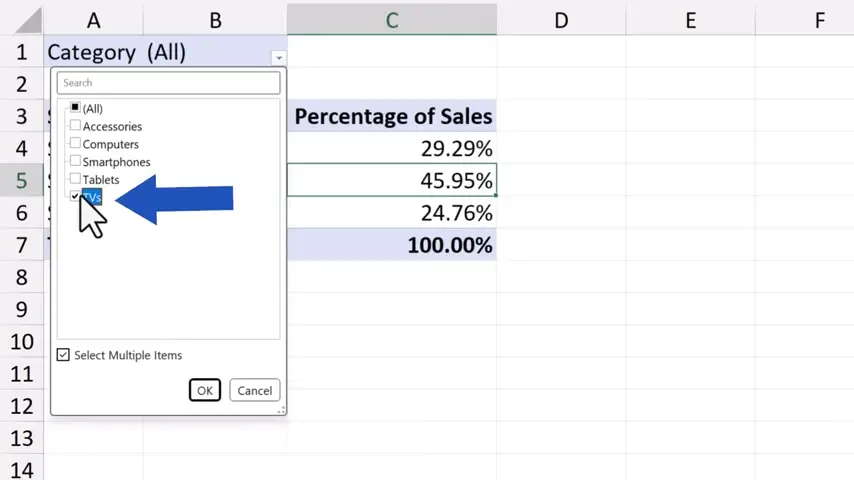
Click on OK, and we see right away the TVs sales figures for each of the stores.
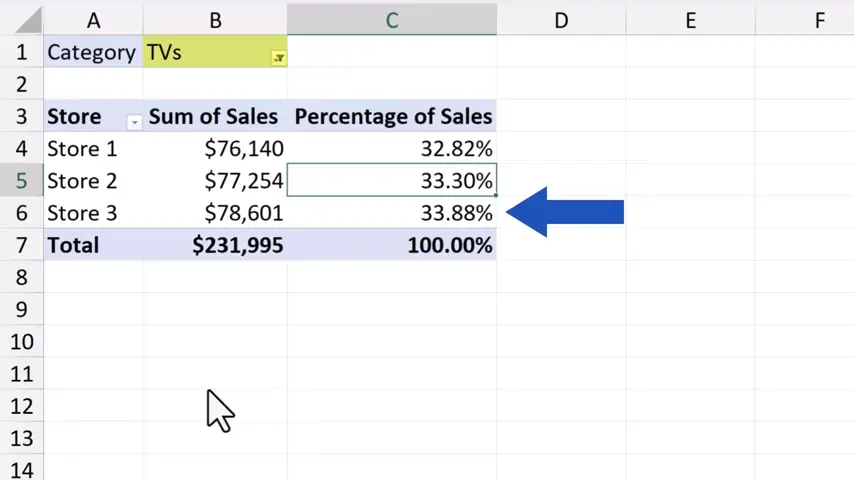
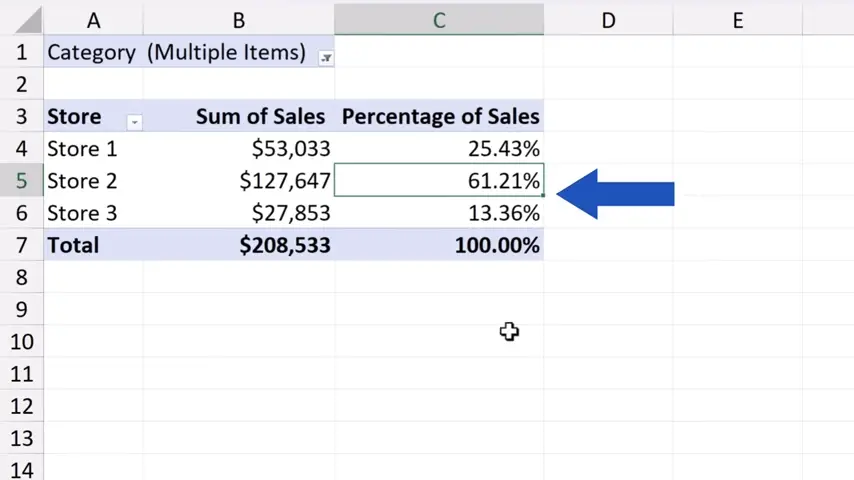
So, we can filter data by a category or by multiple categories simultaneously. Let’s unselect ‘TVs’ and tick ‘Smartphones’ and ‘Tablets’ instead.
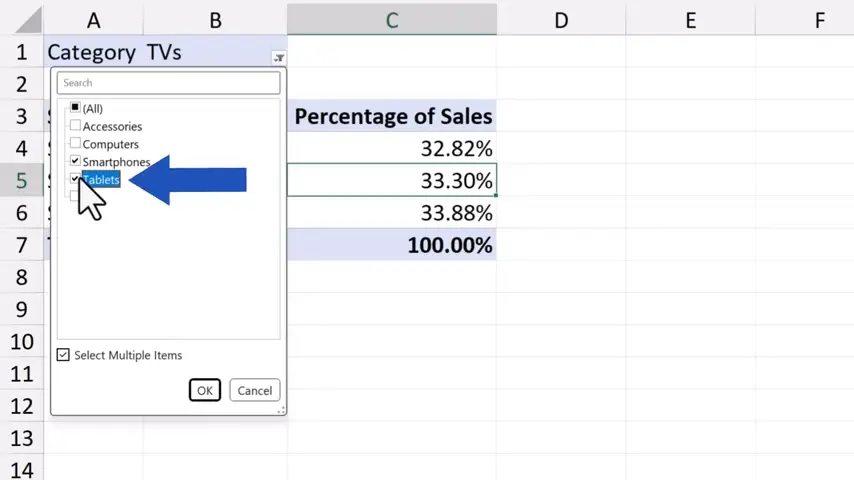
And here we go!
This is a simple way to filter data in a pivot table. We can obtain the information we need in no time at all!
How to Remove a Filter in a Pivot Table
When we don’t need the filter anymore, we can easily remove it from the pivot table. Click anywhere within the pivot table and the pane on the right appears again.
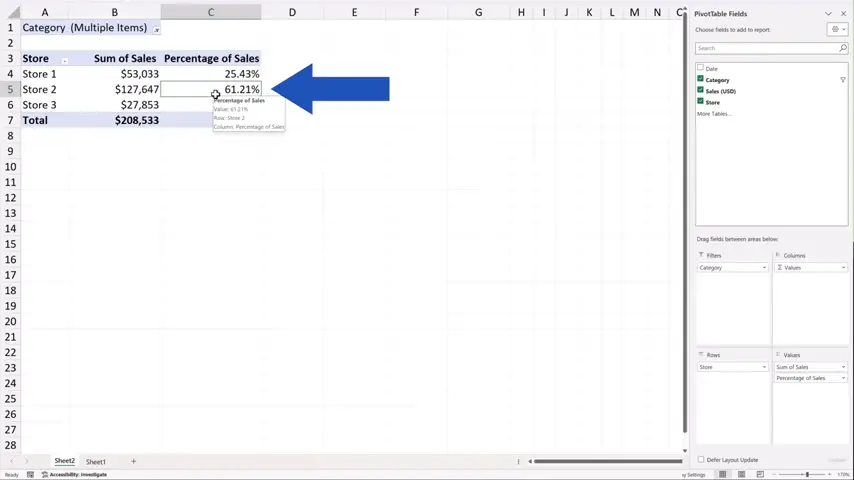
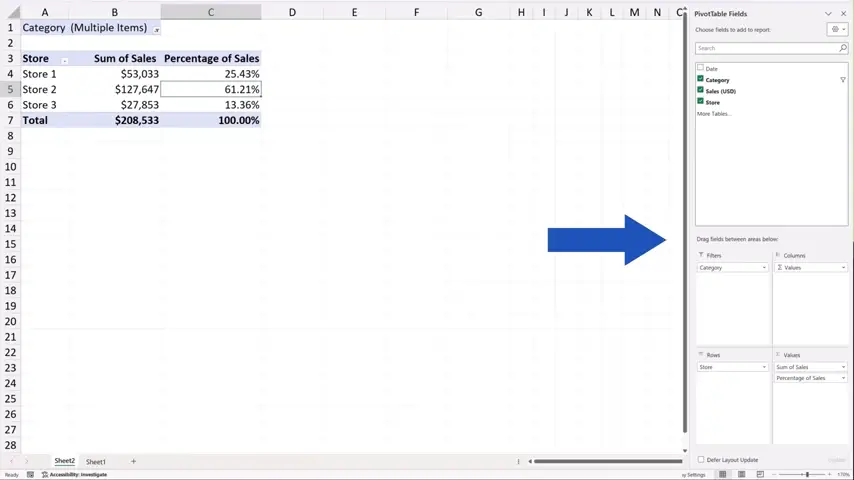
Using drag-and-drop, we can move ‘Category’ from ‘Filters’ onto the screen.
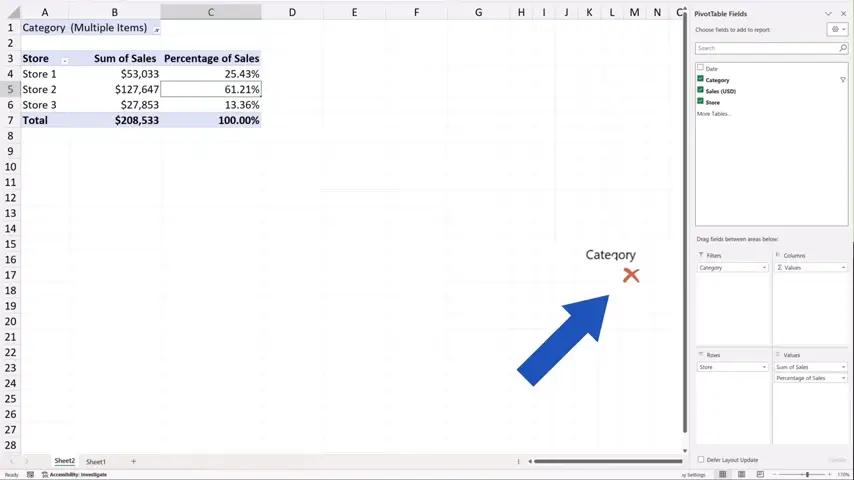
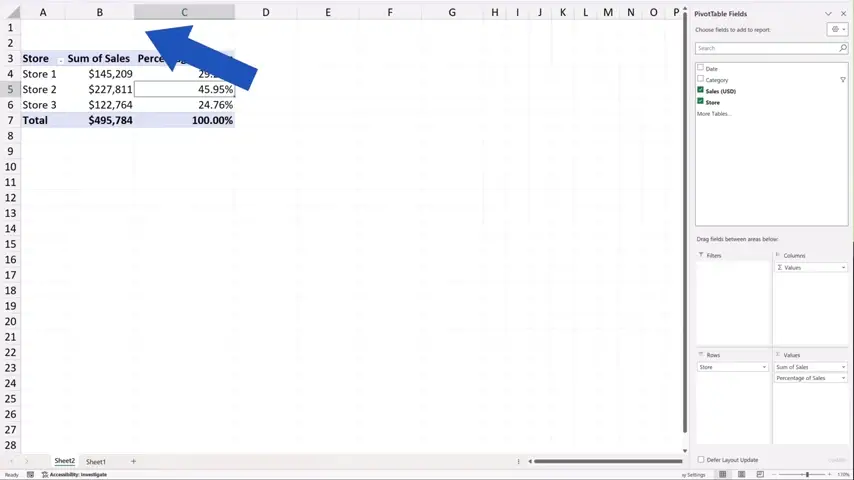
And that’s it! The ‘Filters’ option’s gone!
Before we wrap it up today, I’d like to let you know that there’s another way to filter data in a pivot table effectively – we can use a great tool called slicers.
Don’t miss out a great opportunity to learn:
If you found this tutorial helpful, give us a like and watch other tutorials by EasyClick Academy. Learn how to use Excel in a quick and easy way!
Is this your first time on EasyClick? We’ll be more than happy to welcome you in our online community. Hit that Subscribe button and join the EasyClickers!
Thanks for watching and I’ll see you in the next tutorial!

 How to Subtract a Percentage in Excel
Welcome! Today we’re going to talk about the simplest way how to…