How to Sort Data in Pivot Table
In this video tutorial, we’re going to have a look at how to sort data in a pivot table. You’ll see a simple way to easily sort data in a pivot table smallest to largest or vice versa, depending on what you need.
So, let’s get into it!
How to Sort a Pivot Table by Number
To sort data in a pivot table, first we need to click anywhere within the column we want to sort.
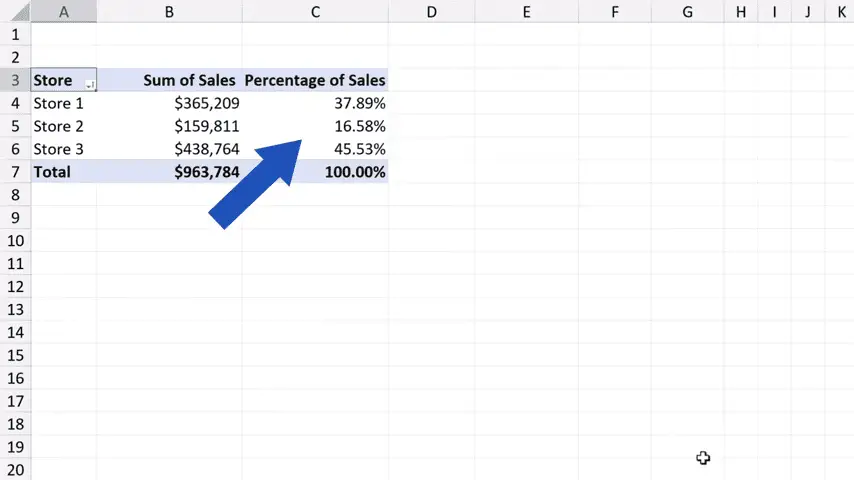
Then we right-click and look up the option ‘Sort’.
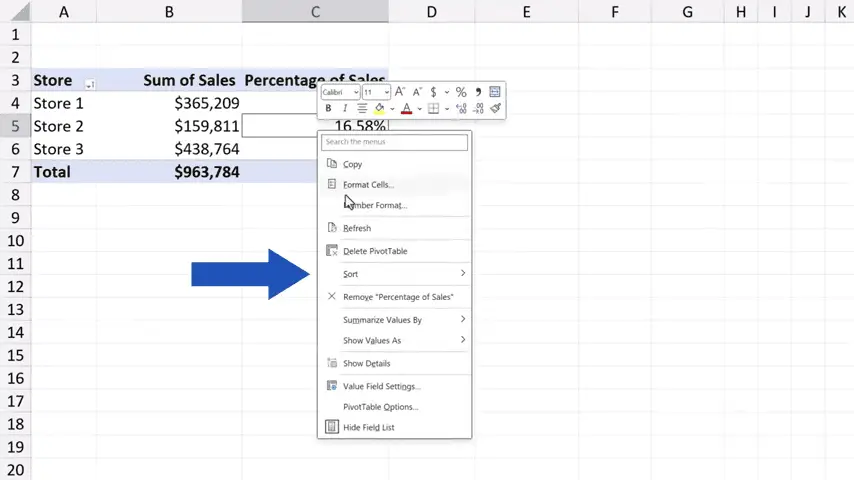
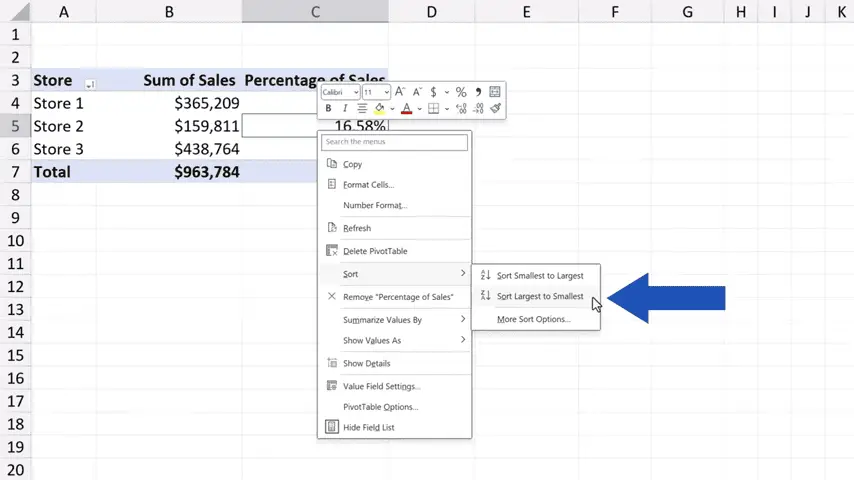
Here we can choose whether we want to sort the data smallest to largest or vice versa, largest to smallest. We go for ‘Largest to Smallest’ now and that’s it!
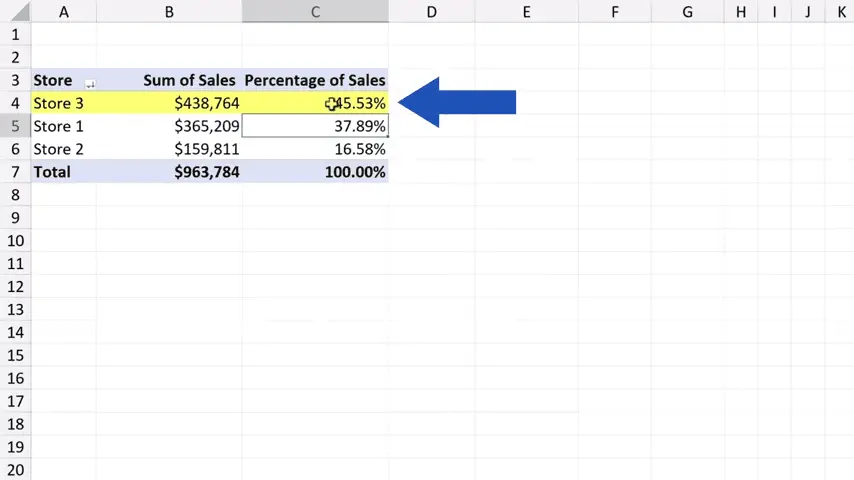
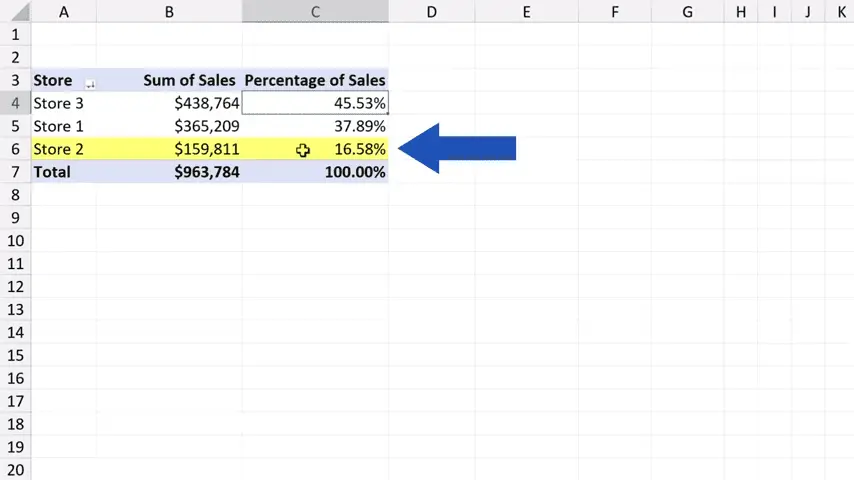
The largest volume of sales was by Store 3, the smallest by Store 2.
How to Sort a Pivot Table by Text
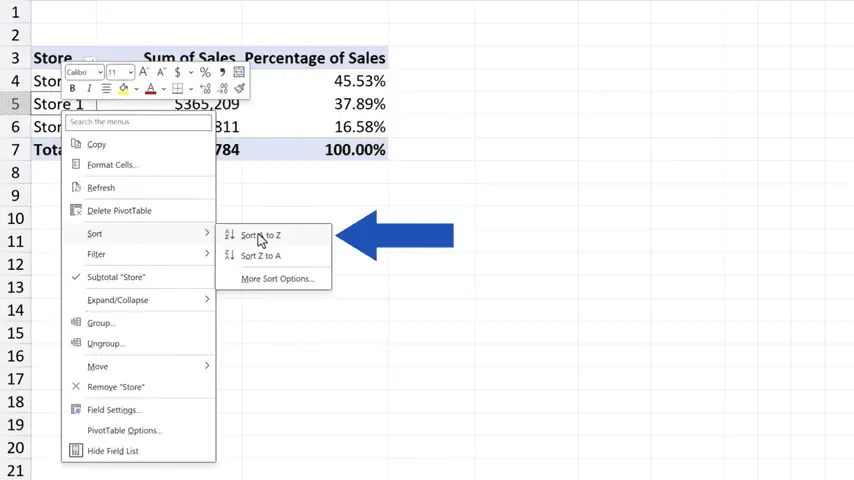
The same way to simply sort data works not only with numbers but with text, too. Let’s click into the column ‘Store’, right-click again, click on ‘Sort’ and choose the option ‘A to Z’. And here we go! All done!
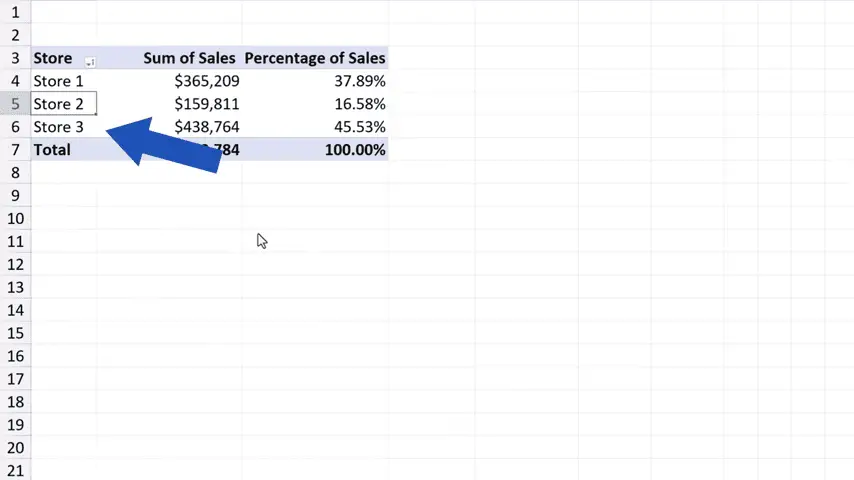
The same way we can sort data in any column of the pivot table. We just need to pick the column we need.
Don’t miss out a great opportunity to learn:
If you found this tutorial helpful, give us a like and watch other tutorials by EasyClick Academy. Learn how to use Excel in a quick and easy way!
Is this your first time on EasyClick? We’ll be more than happy to welcome you in our online community. Hit that Subscribe button and join the EasyClickers!
Thanks for watching and I’ll see you in the next tutorial!

 How to Subtract a Percentage in Excel
Welcome! Today we’re going to talk about the simplest way how to…