How to Copy Formatting in Excel
In this video tutorial we’re going to cover the quickest way how to copy formatting in Excel. Thanks to these couple of steps, you’ll be able to copy formatting from one cell or range of cells to another – all this without any manual intervention, like setting the colour, fonts, or borders.
Let’s do this!
How to Use Format Painter in Excel
There’s more than one way to copy formatting in Excel. Today we’re going through the easiest and the quickest one – using the tool Format Painter.
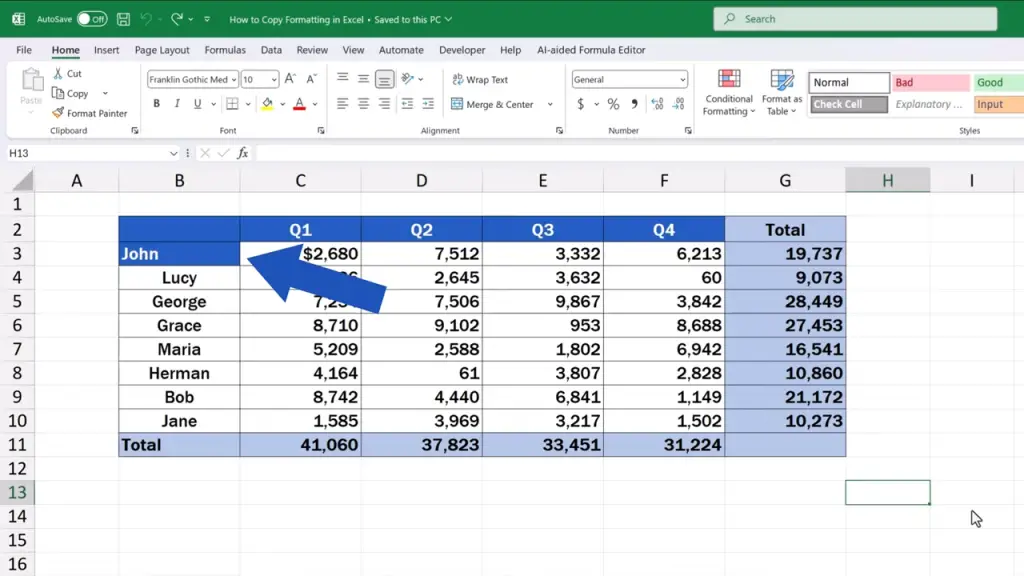
Let’s say we want to copy the formatting of the cell B3, which is the blue background, white font, text aligned left, and we want the whole column B looking like this. We want to apply the same formatting to this list of names.
First, we click on the cell which is formatted the way we want the whole column B to look like, so we click on B3.
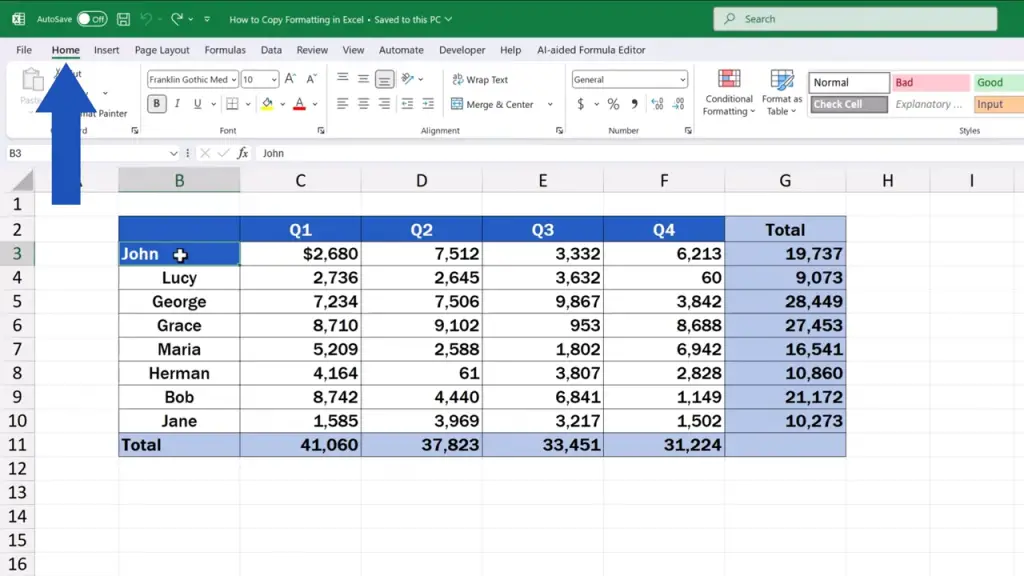
Then, we open the ‘Home’ tab.
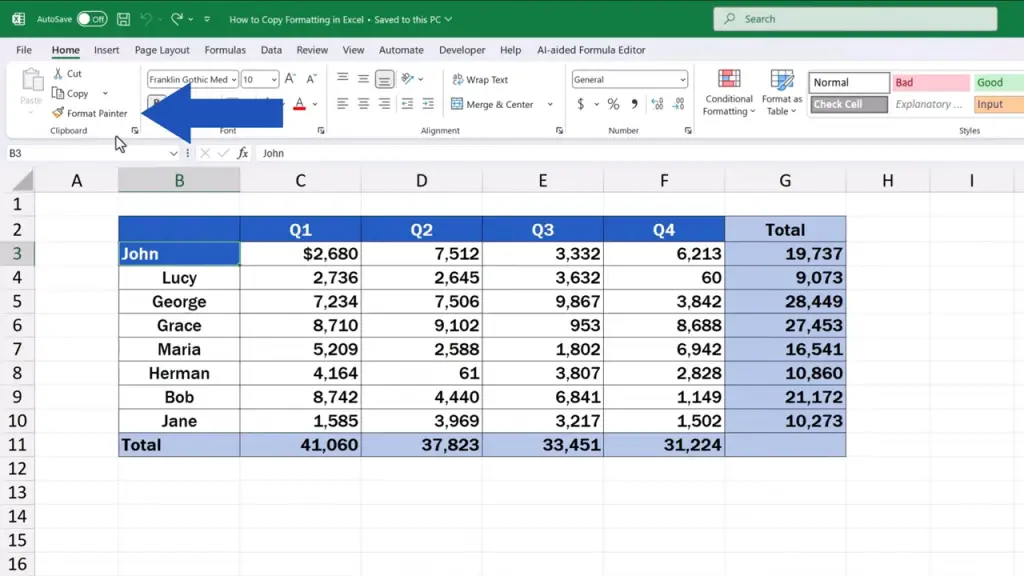
Go to ‘Clipboard’ and click on the button ‘Format Painter’.
We can see that the cursor has changed and we see a little icon of a paintbrush next to it, which means we can now apply the selected formatting to any cell or range of cells we want.

If we want to apply the formatting to one cell only, we simply click on the target cell and that’s all it takes. We click on B4 and it’s now been formatted like B3.
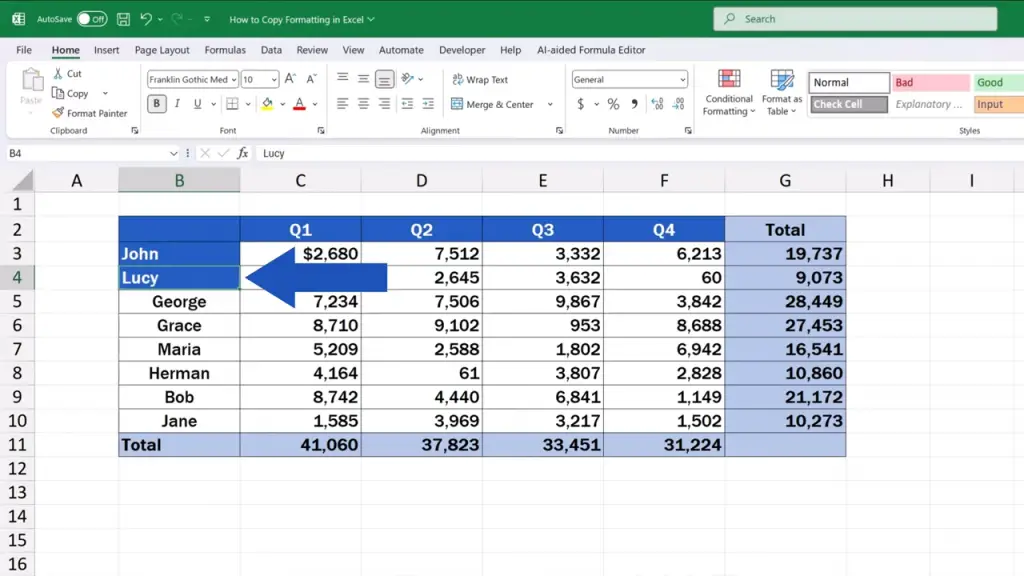
How to Copy Excel Formatting to Multiple Cells
To apply the formatting on a range of cells is pretty simple, too!
We just select the cell with the desired formatting, so we click on B3 again, then we click on Format Painter to see the paintbrush icon, and the following step will be slightly different.
We press and hold the left mouse button and select the whole area where we want to change the formatting. Once the area’s been highlighted, we release the left mouse button and that’s it.
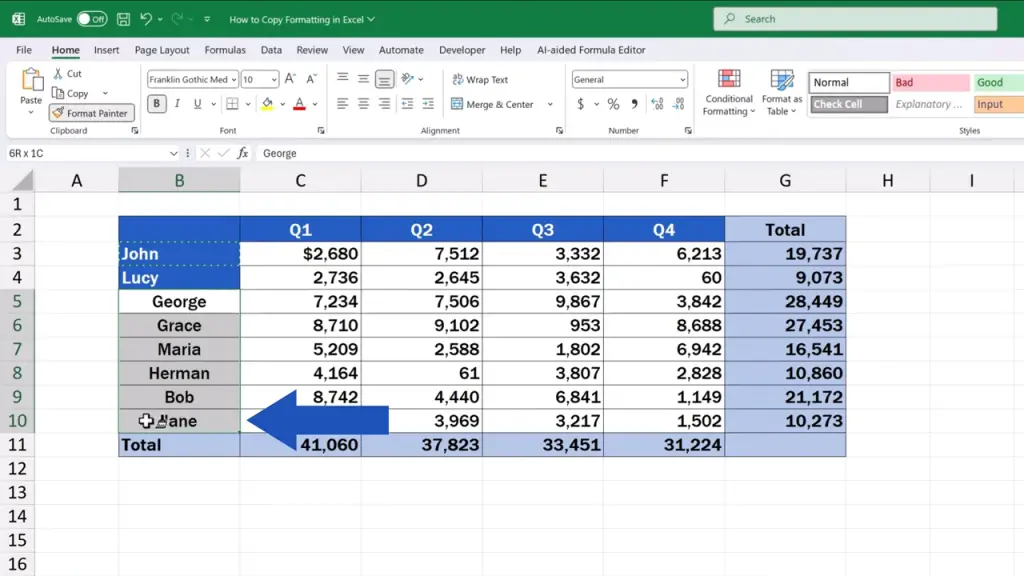
The formatting used in B3 has been applied to the whole range of cells, specifically the column B. Everything, colours, fonts, alignment, borders, and other settings, all this has been applied here just as in the original cell B3.
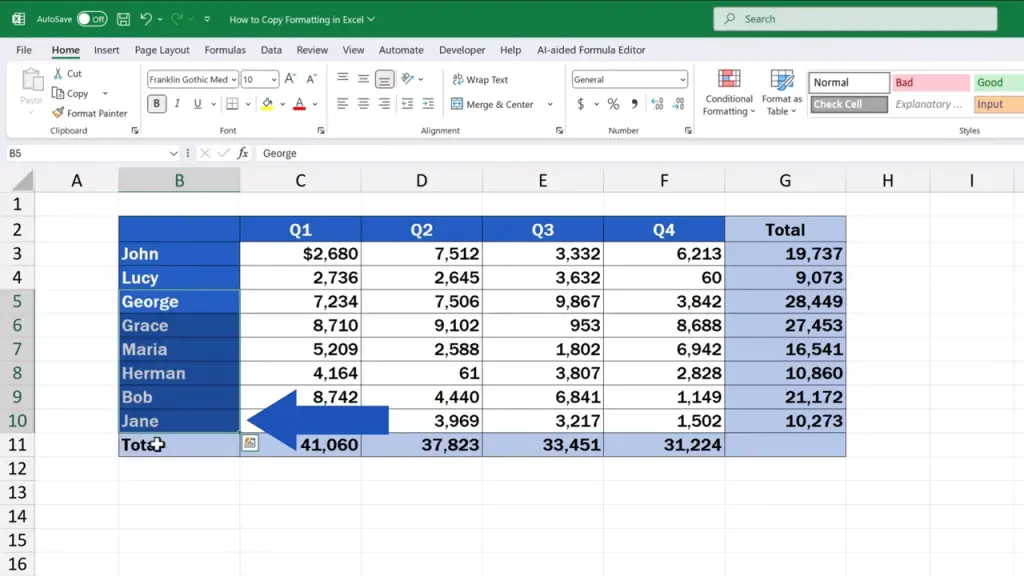
How to Apply Formatting to Multiple Areas in Excel
And before we wrap it up, here’s a little trick worth remembering.
If you need to apply formatting to multiple areas across an Excel spreadsheet, you don’t need to click on Format Painter over and over again. Here’s what to do.
For instance, we want to copy the formatting used in cell C3, which has been formatted as number with the dollar sign, to multiple cells across this data table.
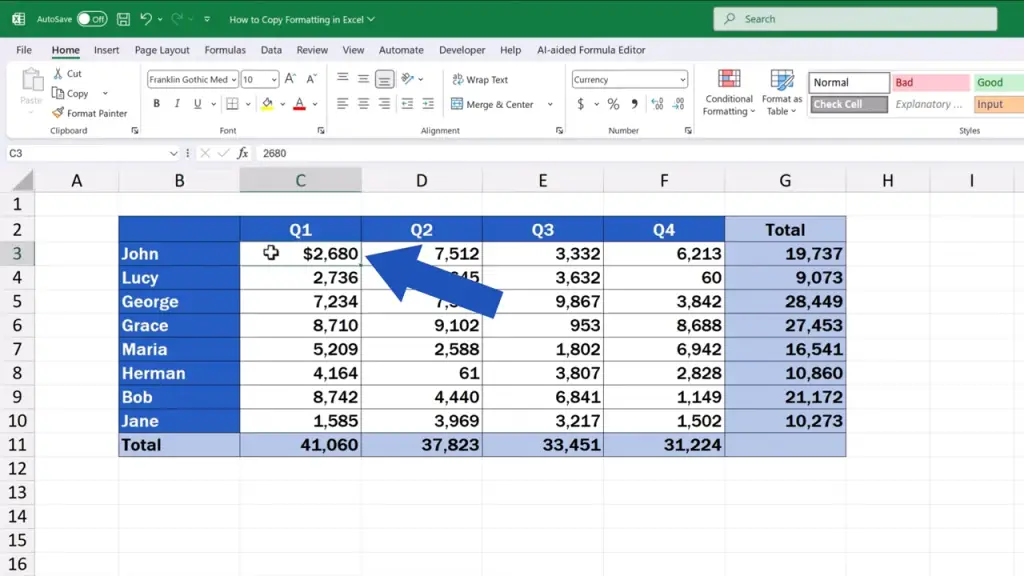
We click on C3 again to mark the formatting we want to apply multiple times in various places, but we don’t use a single but rather a double click on the ‘Format Painter’ icon.
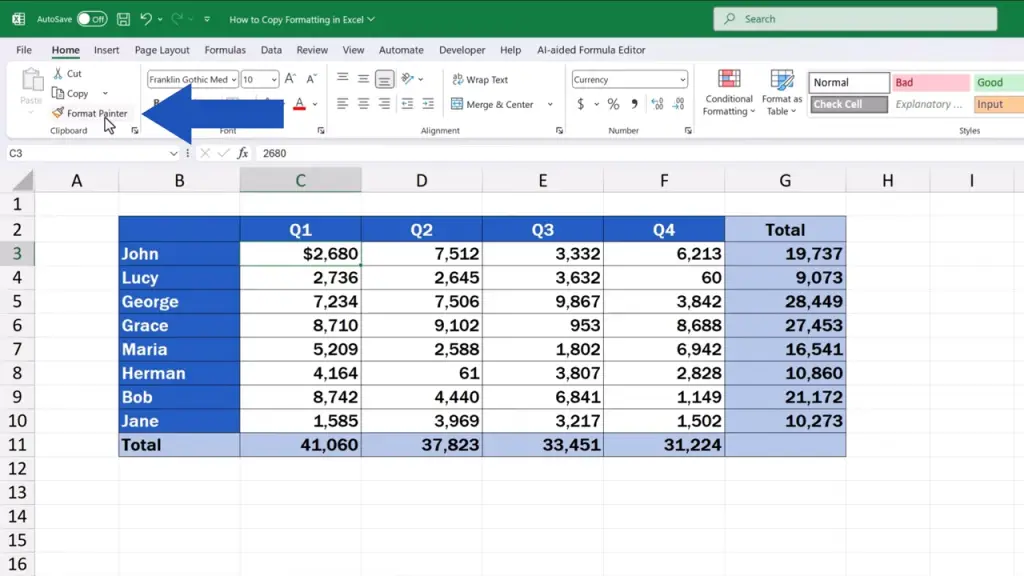
So, double-click on the button ‘Format Painter’ and now we can apply the copied formatting multiple times without having to click on the ‘Format Painter’ button every single time.
That’s how we can format any number of individual cells or ranges of cells in a quick and convenient way.
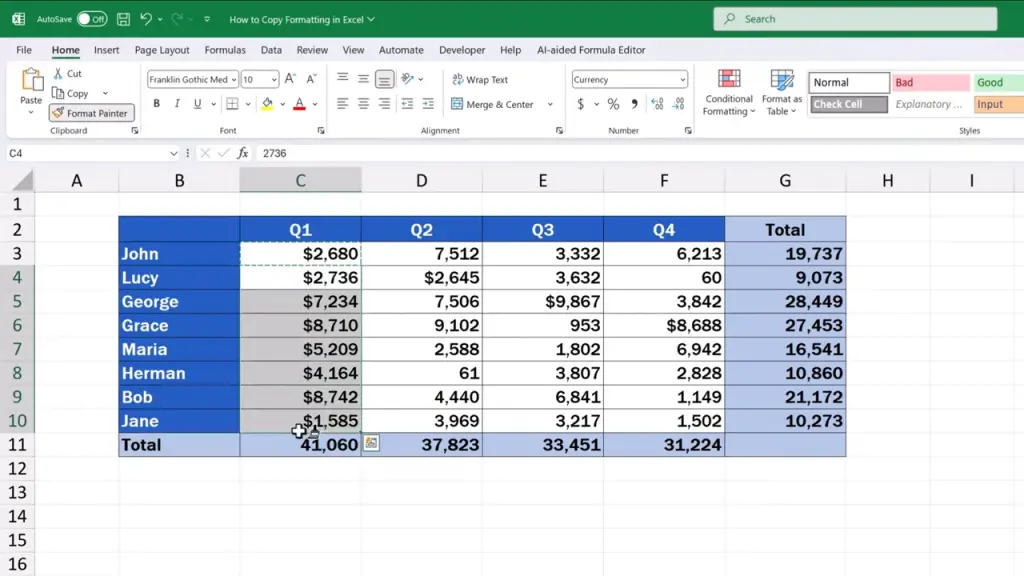
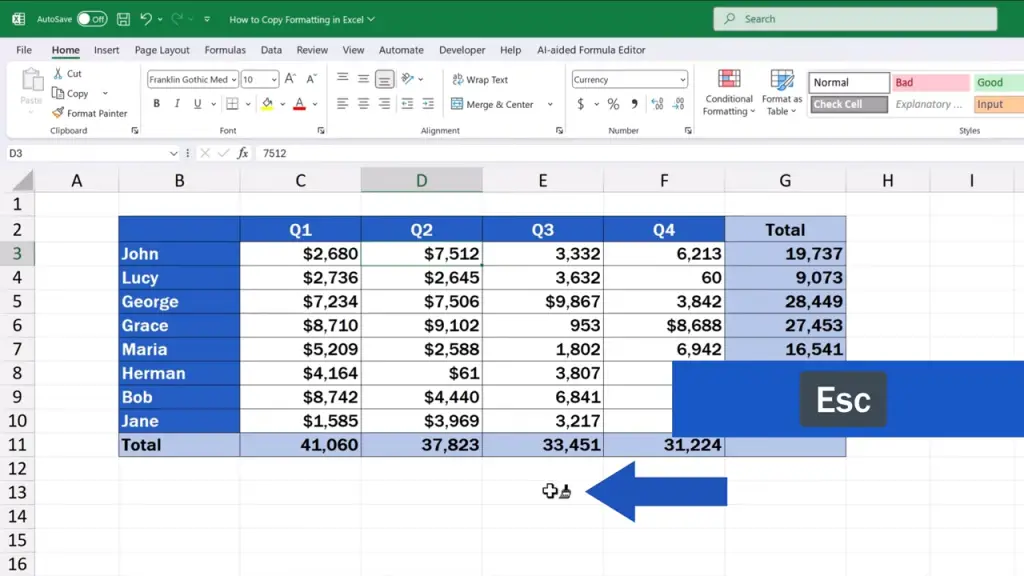
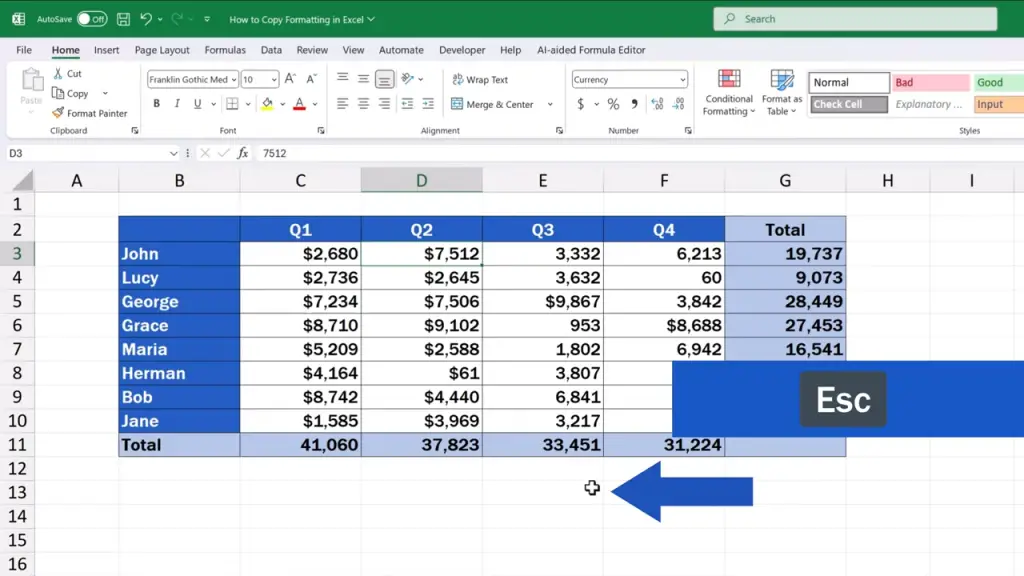
Once we’ve finished the work with Format Painter, we simply press the Escape key, the paintbrush icon next to the cursor will disappear and we’re back to normal.
We hope this tutorial on how to copy formatting in Excel helps and saves a great deal of time when formatting data tables.
Don’t miss out a great opportunity to learn:
If you found this tutorial helpful, give us a like and watch other tutorials by EasyClick Academy. Learn how to use Excel in a quick and easy way!
Is this your first time on EasyClick? We’ll be more than happy to welcome you in our online community. Hit that Subscribe button and join the EasyClickers!
Thanks for watching and I’ll see you in the next tutorial!

 How to Subtract a Percentage in Excel
Welcome! Today we’re going to talk about the simplest way how to…