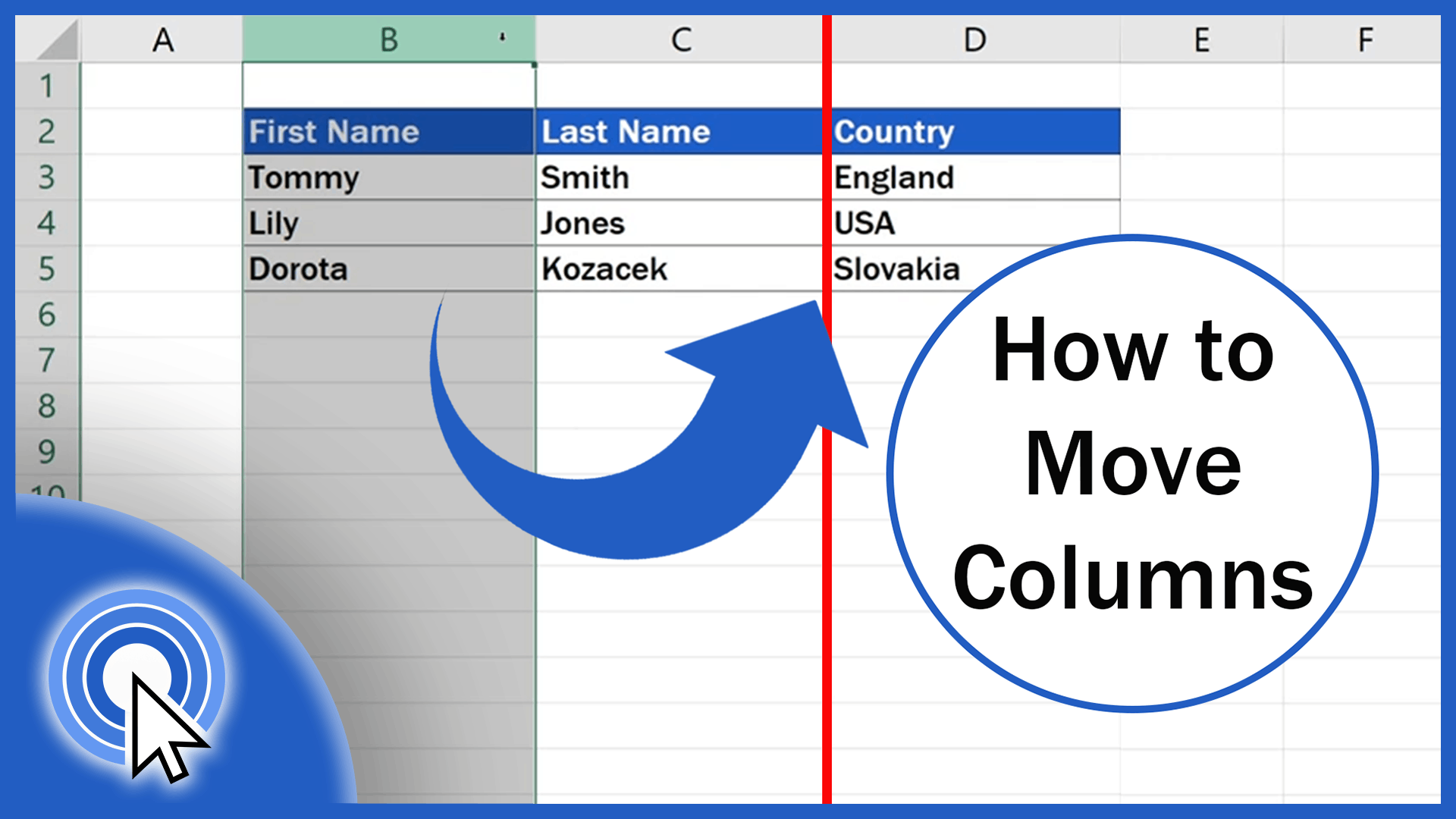
To learn how to move columns in Excel may not be that hard. Actually, what you’ll see here, in this tutorial, is the easiest way. If you’d like to move a column in Excel, you don’t have to go to all the trouble of copying the column, pasting it in the chosen place and then deleting it from the table. Excel offers a great way how to move columns by following a few simple and quick steps. So, here’s the pro tip!
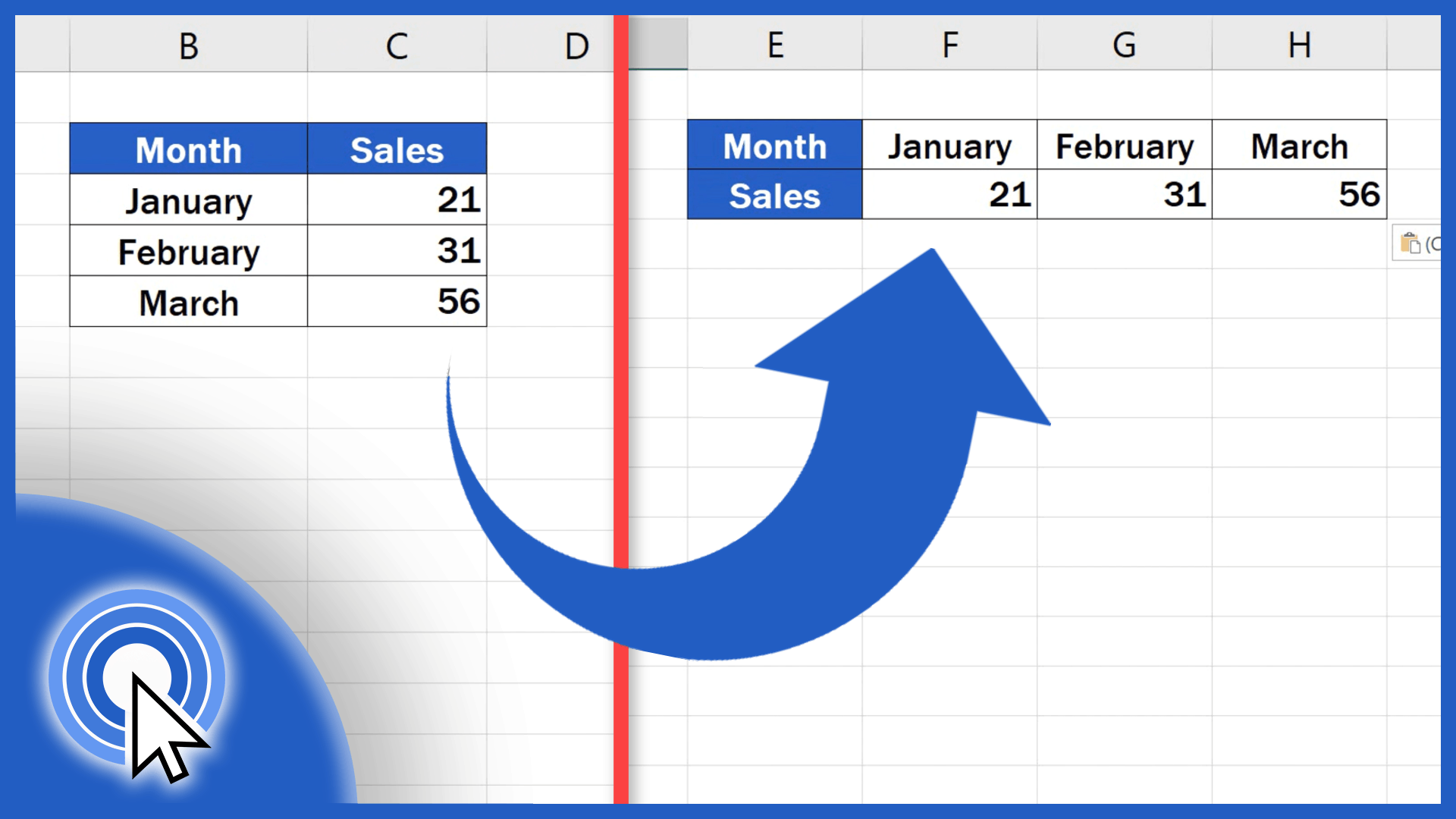
If you’d like to see the easiest way how to switch rows and columns in Excel, you’re in the right place! Just keep reading!
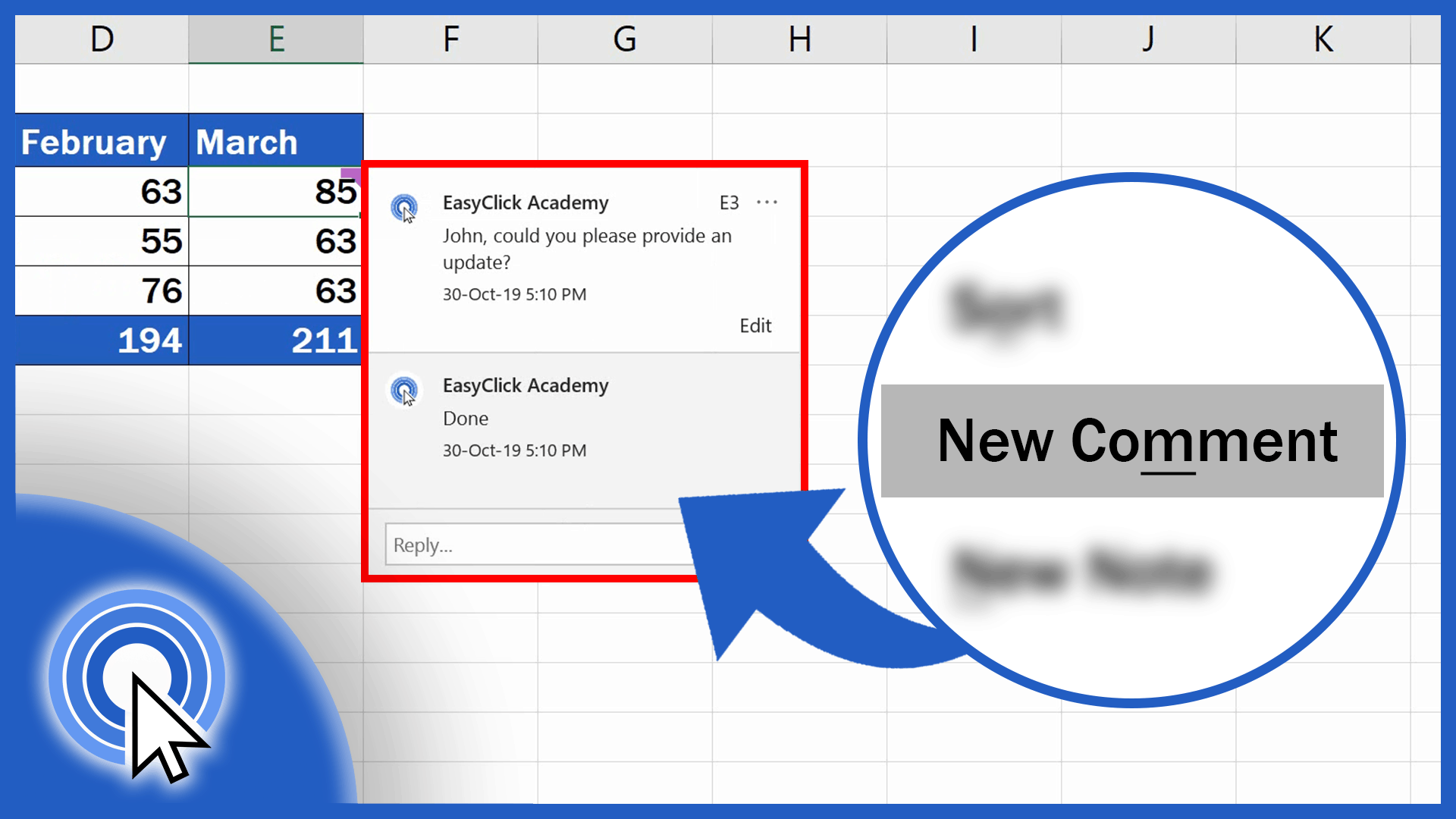
In this tutorial, you’ll see how to insert and use comments in Excel. Thanks to this function, you’ll be able to communicate effectively with other users who are working in the same spreadsheet. We’ll also be talking about how to add and use Excel notes.
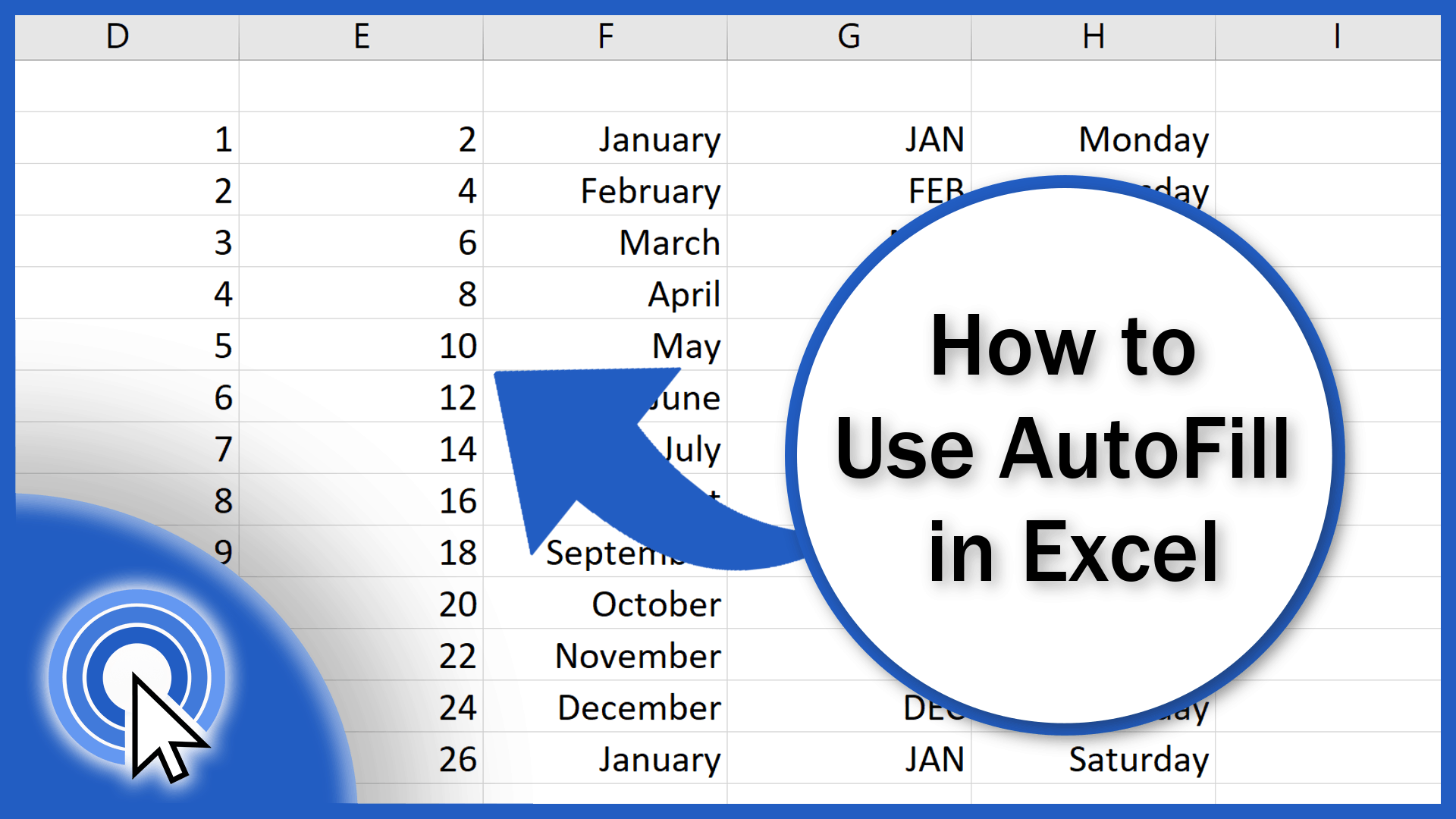
In this tutorial, we’ll be talking about how to use autofill in Excel. You can use the ‘AutoFill’ function to fill in a series of data automatically in a very convenient way, saving yourself a great deal of time.
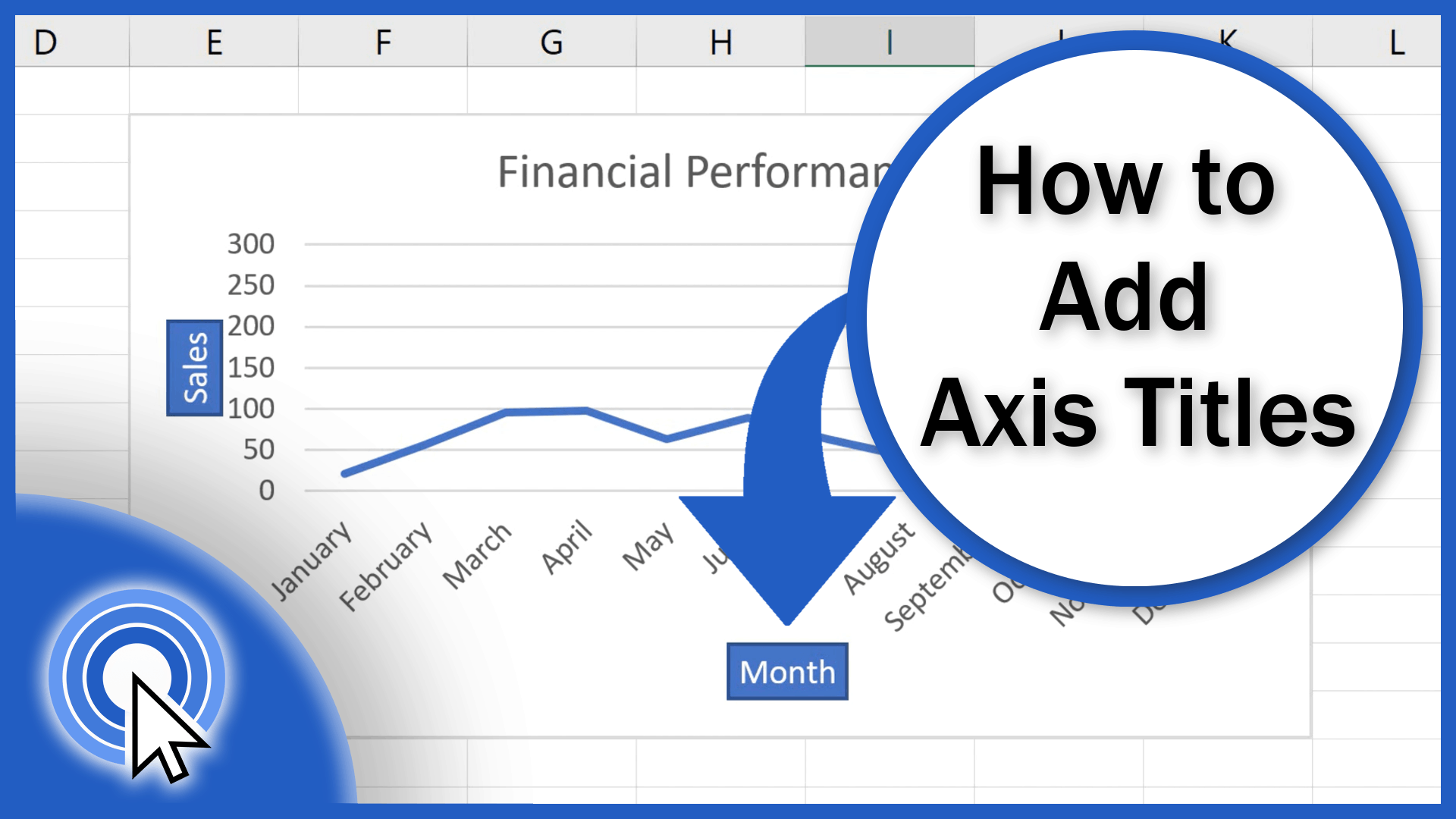
Today, we’re gonna go through how to add axis titles in Excel. And not only that – you’ll see how to format axis titles or, if needed, remove them from a graph.
In this tutorial, we’ll deal with a function, or rather a command that normally can’t be accessed in Excel. That’s why we’ll first have a look at how to enable ‘Track Changes’ in Excel, and then we’ll go step by step through how to use this feature to track changes in a spreadsheet.
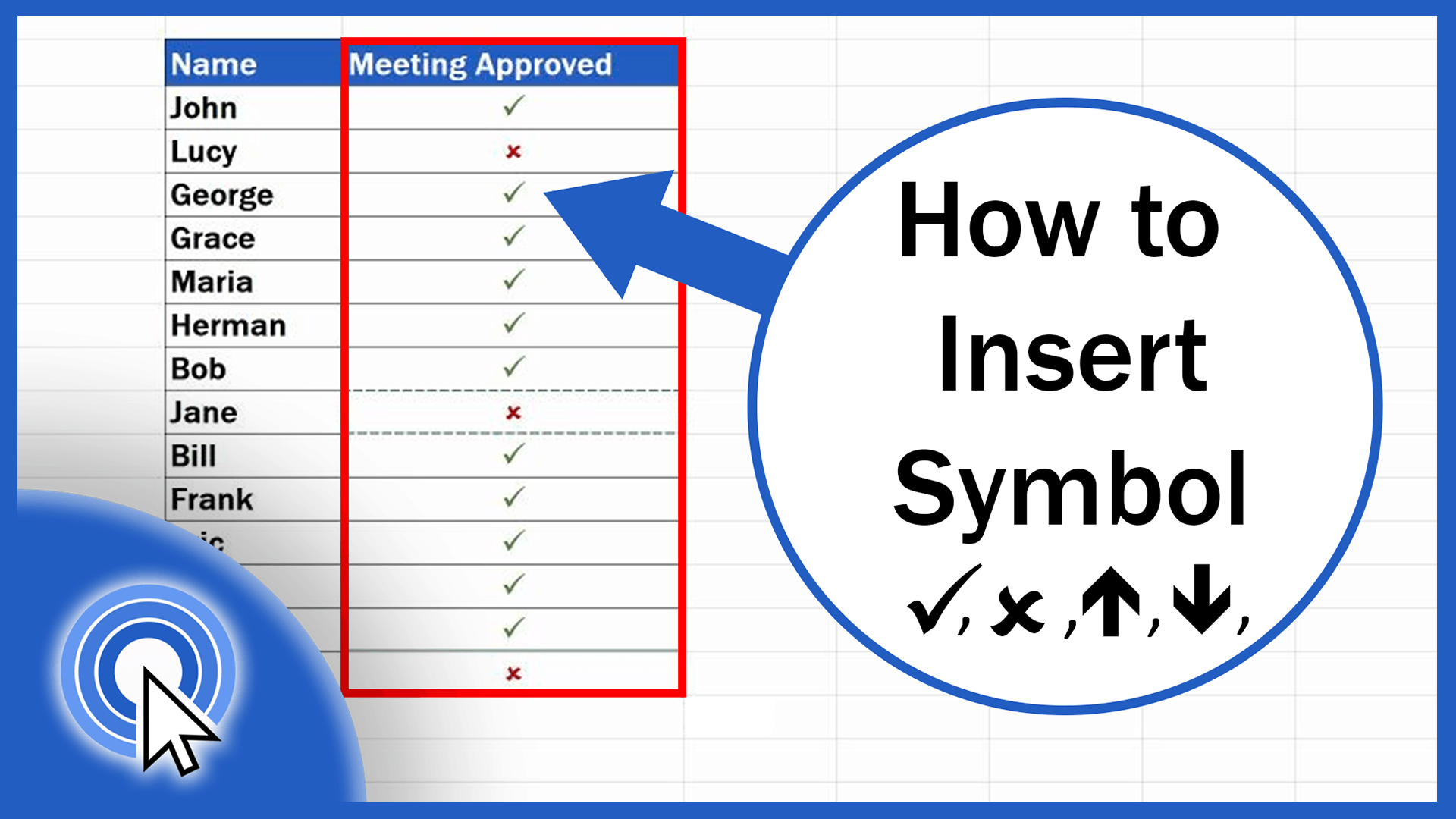
This tutorial will guide you through a few easy steps to see how to insert a symbol in Excel. Beside numbers and text, you’ll learn how to use a variety of symbols, thanks to which you’ll be able to design some impressive data tables.
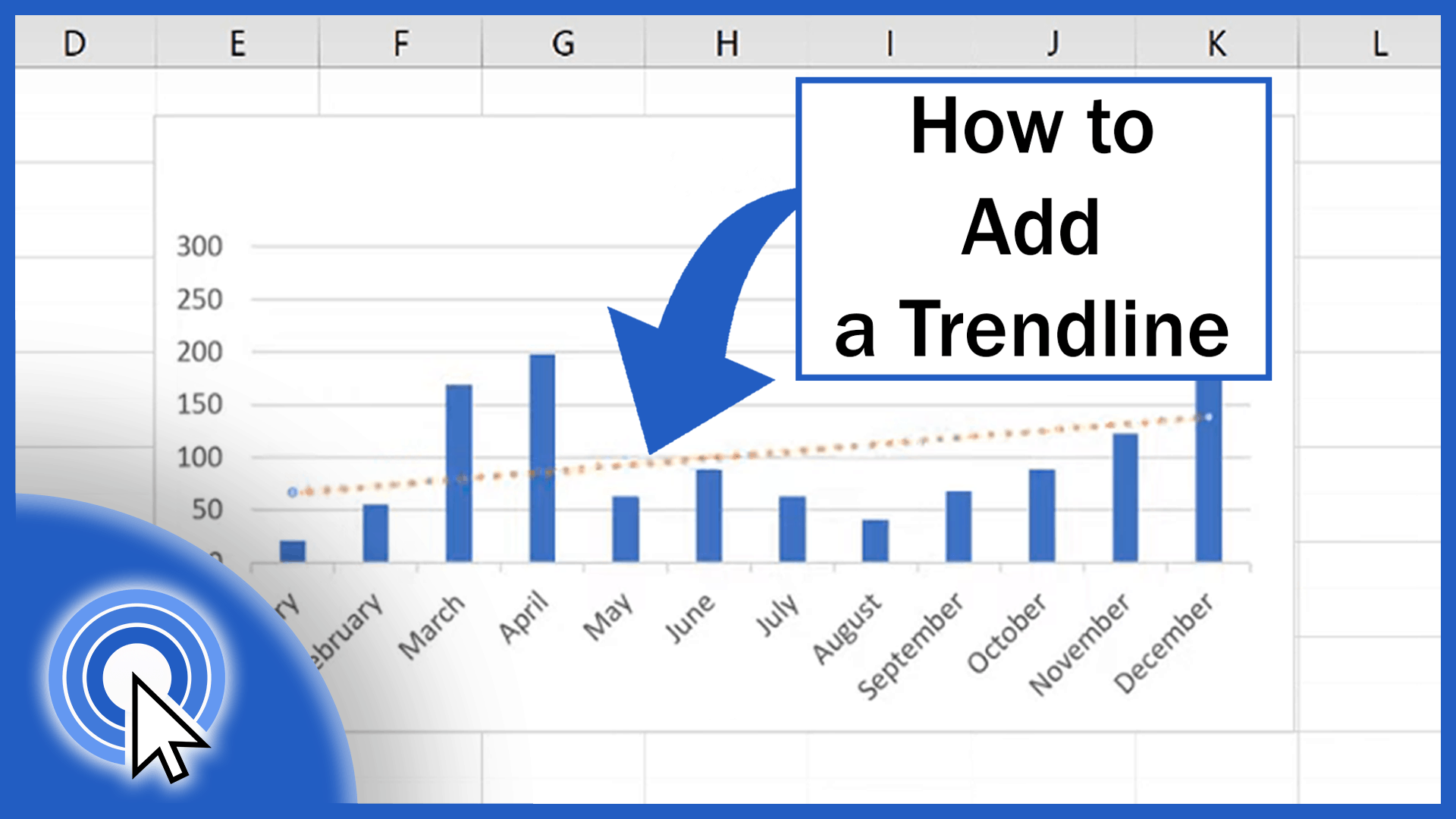
In this tutorial, we’re going to cover how to add a trendline in Excel. This element is invaluable when you need to make a clear and neat visual representation of the data trend.
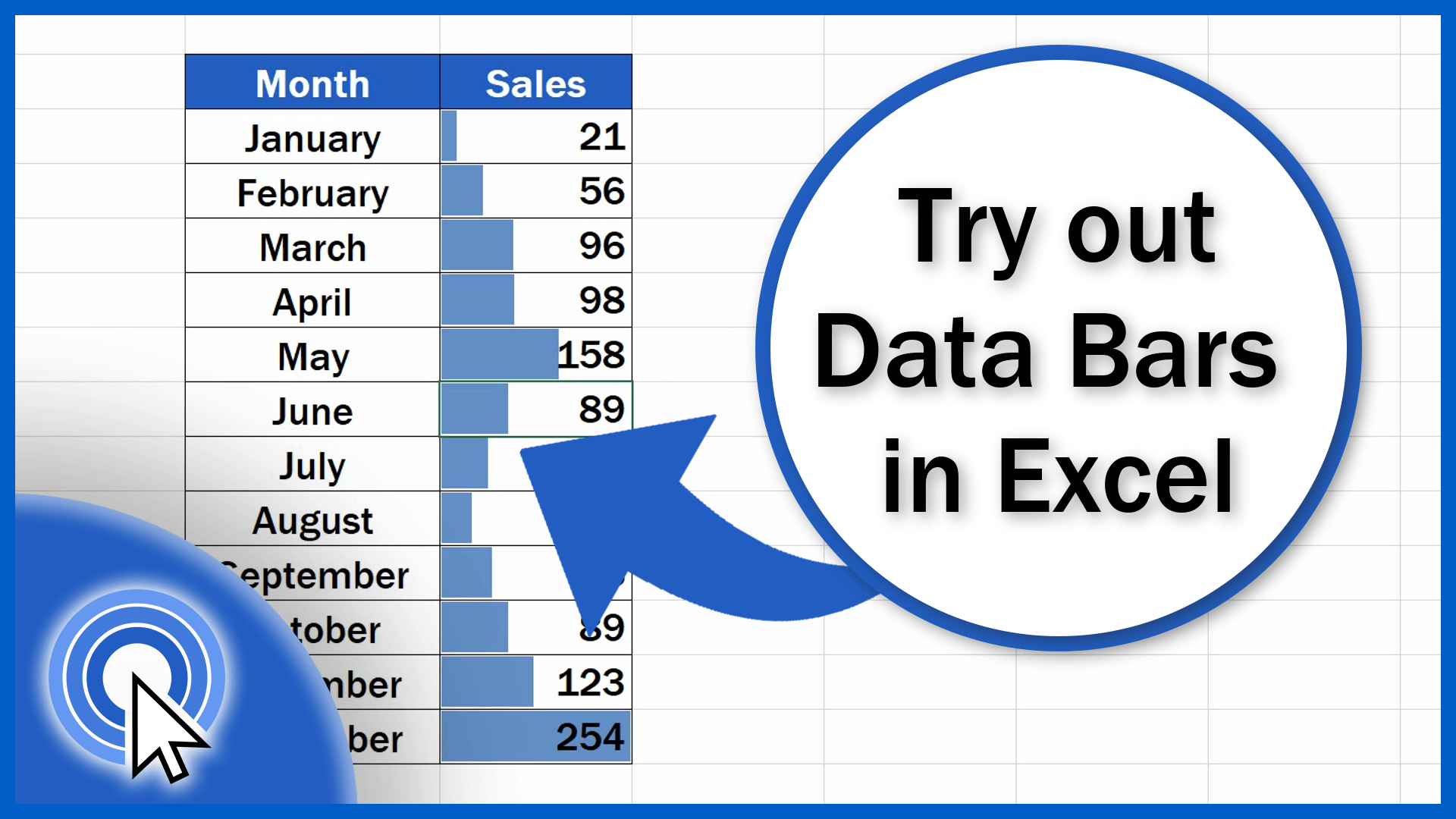
If you’re looking for a clear and easy-to-understand way to display data in a table you created, you’re in the right place! This tutorial offers a step-by-step guide on how to add data bars in Excel. Graphical features like data bars highlight important values in the table and point out how these are related. You’ll also see how easy it is to edit data bars or place them separately, in an individual column.
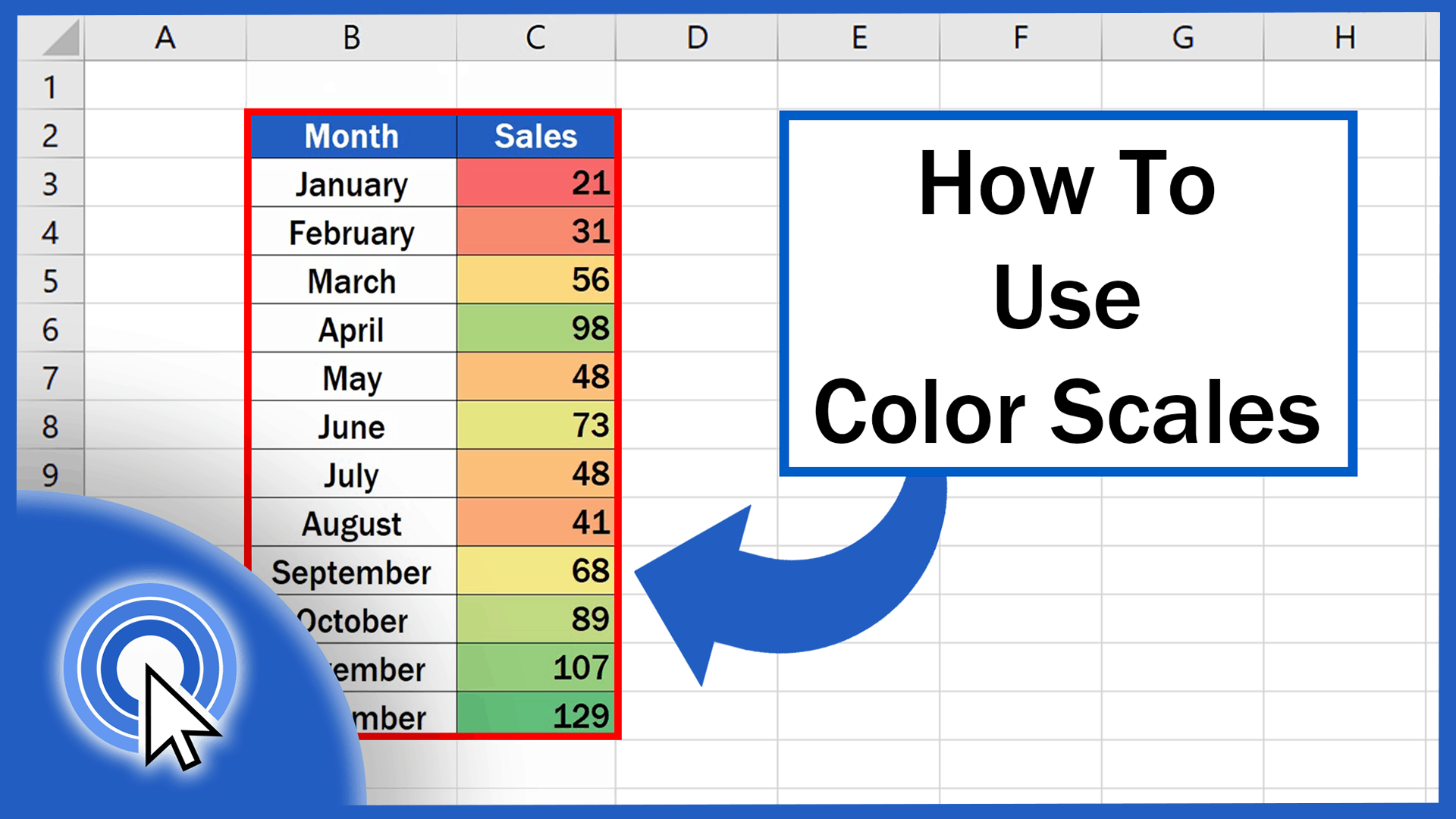
In today’s tutorial, we’re gonna talk about how to use colour scales in Excel. Thanks to colour scales, you’ll be able to design a data table with a clear overview of the maximum, the minimum as well as the middle values.